
Tips & Tricks
Not so obvious features you might have missed.
Selection
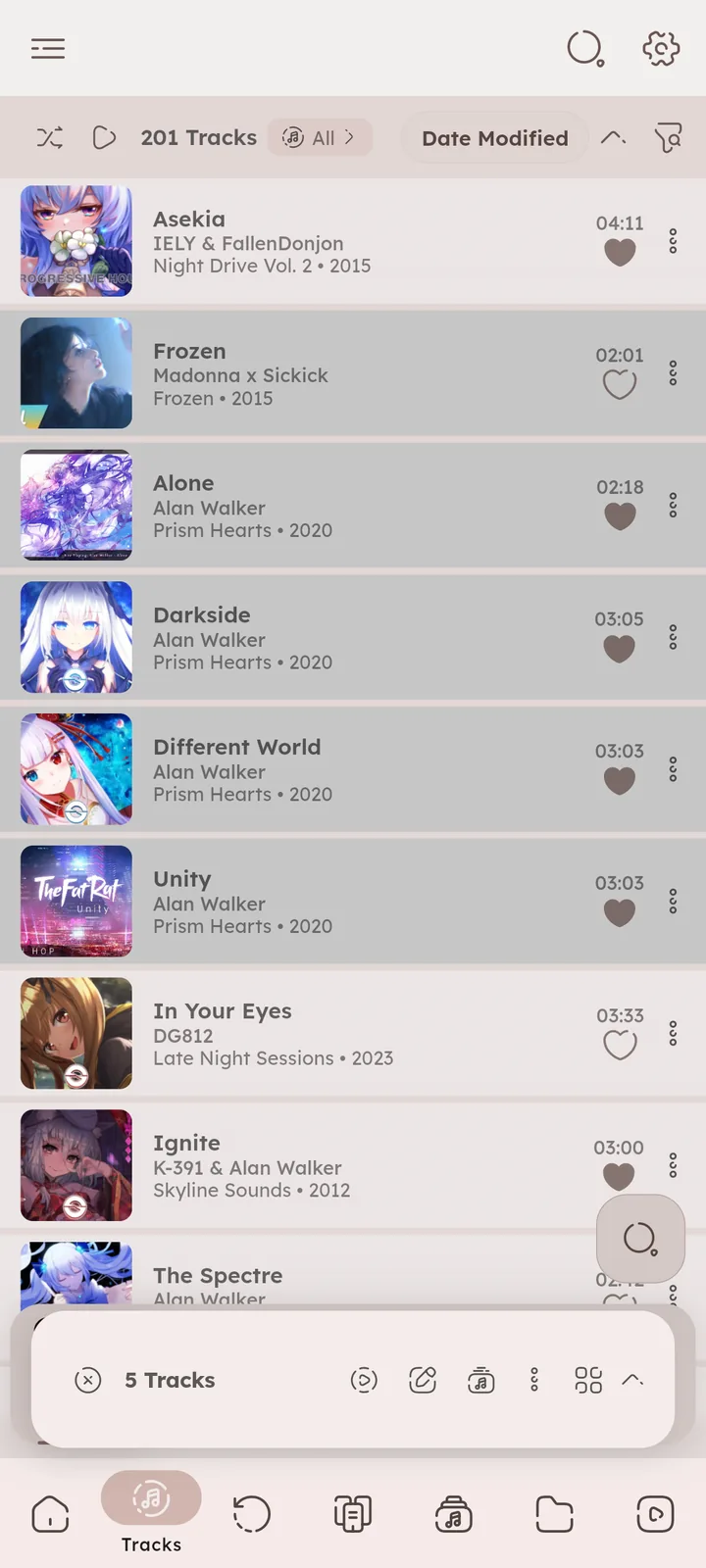
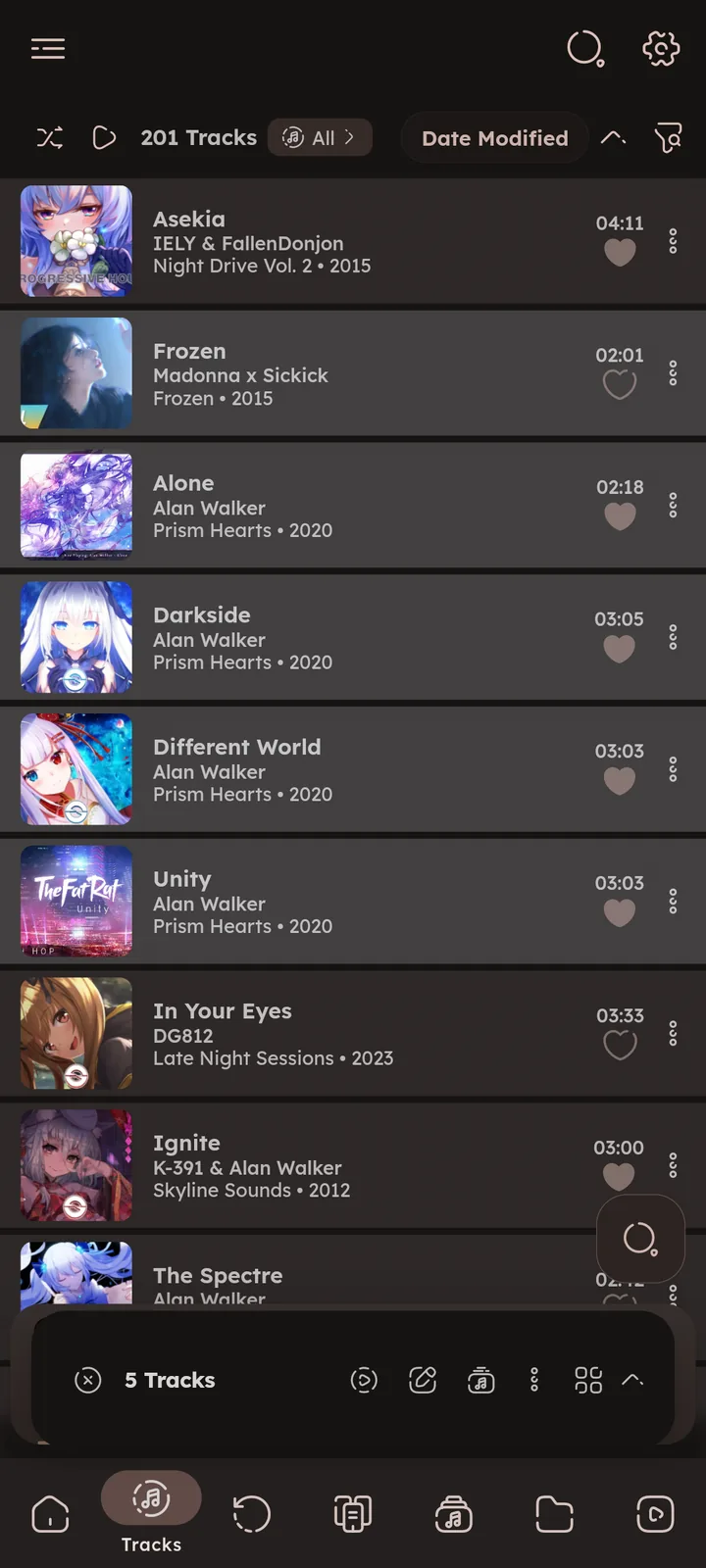
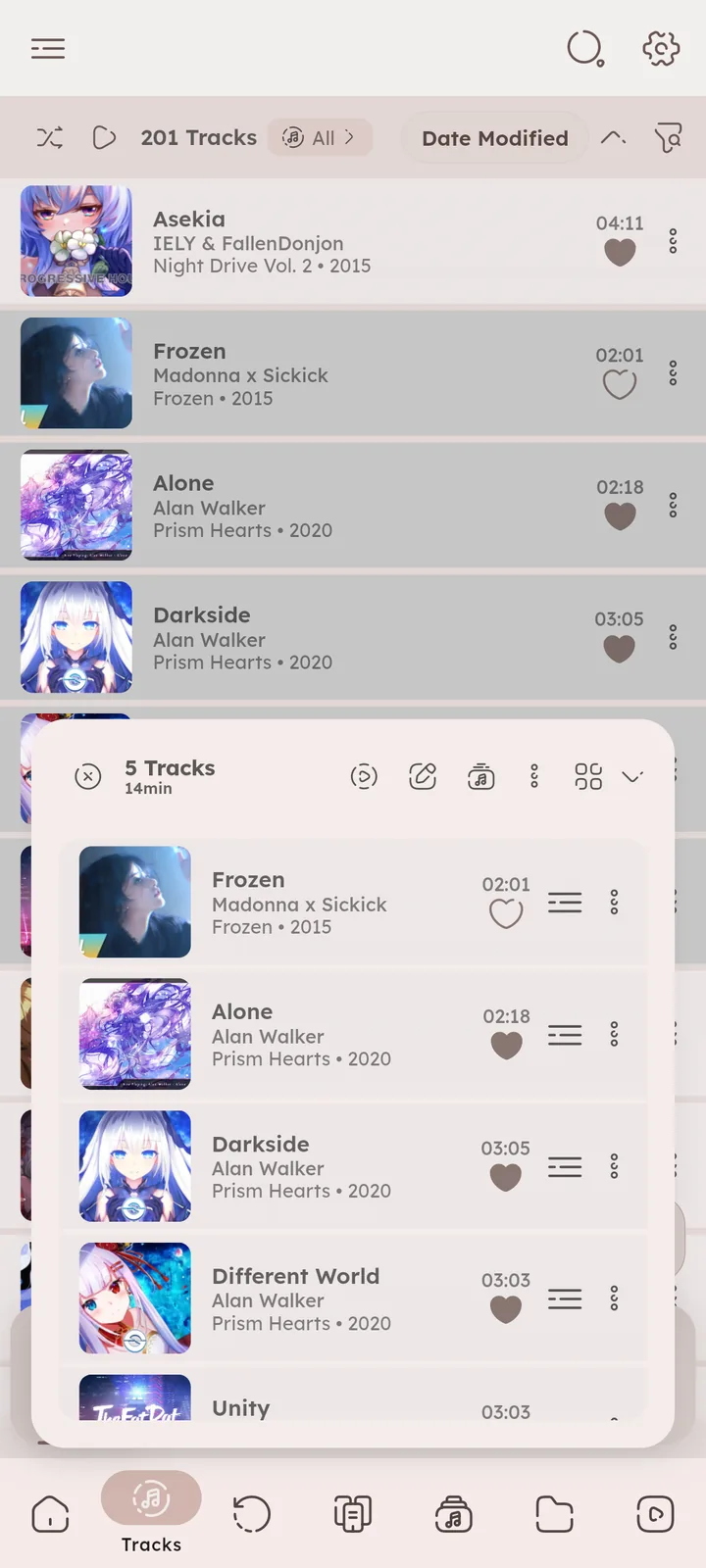
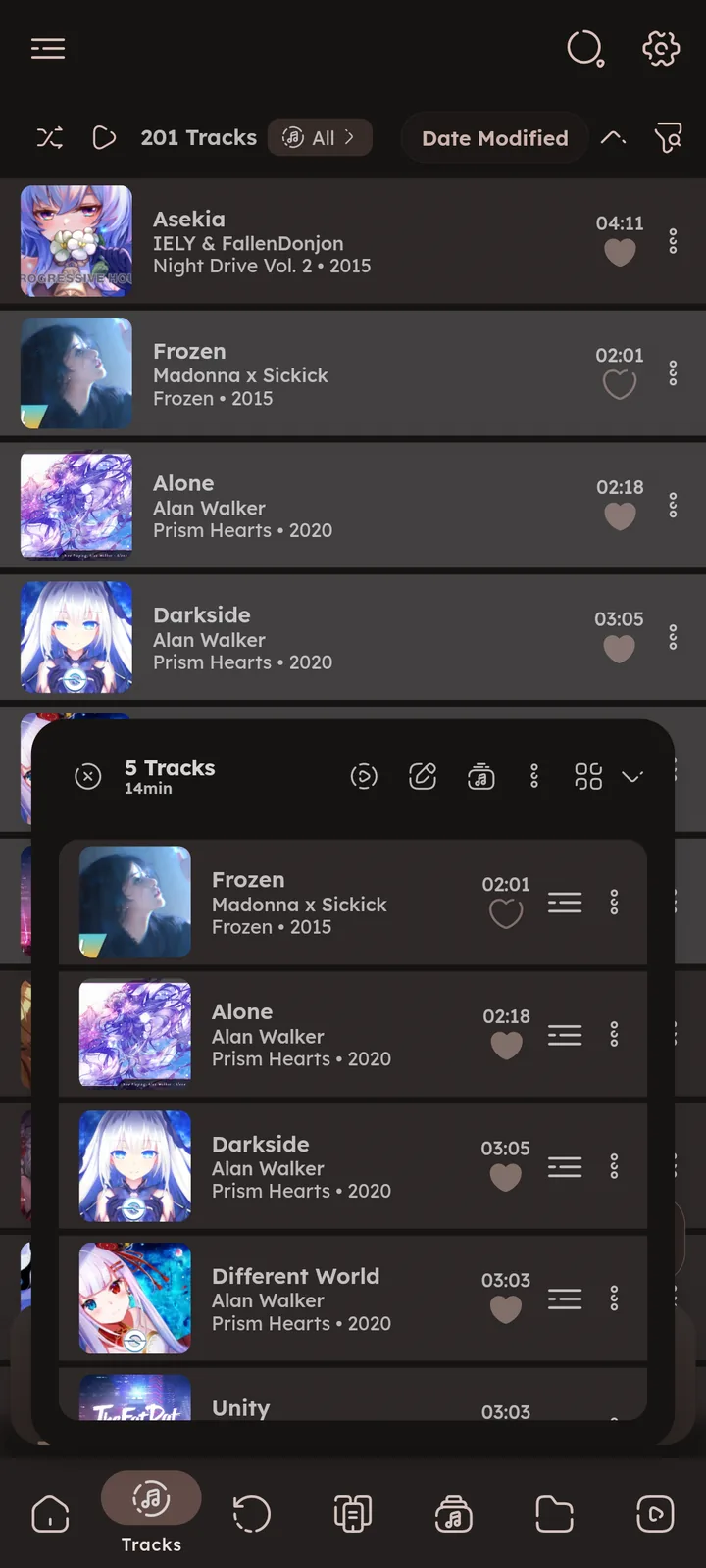
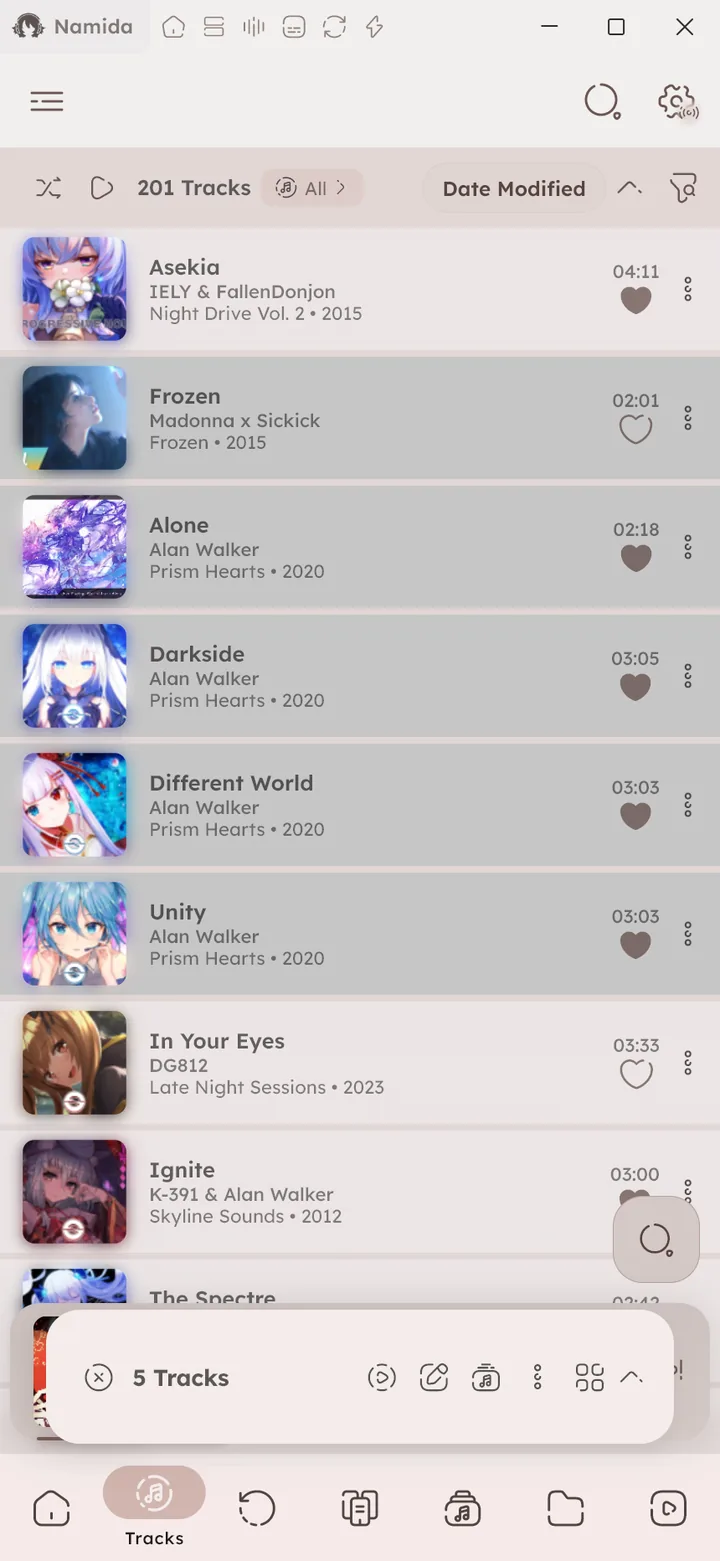
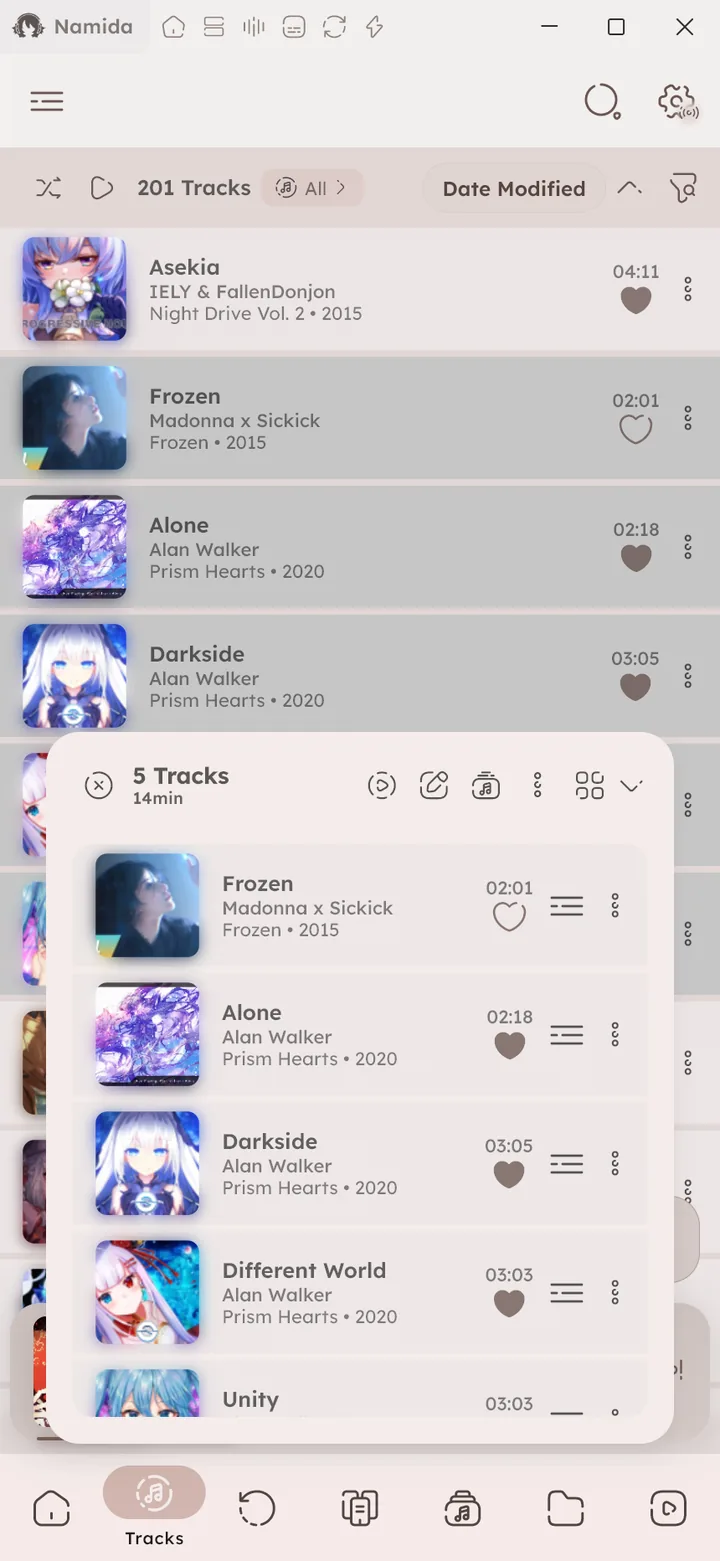
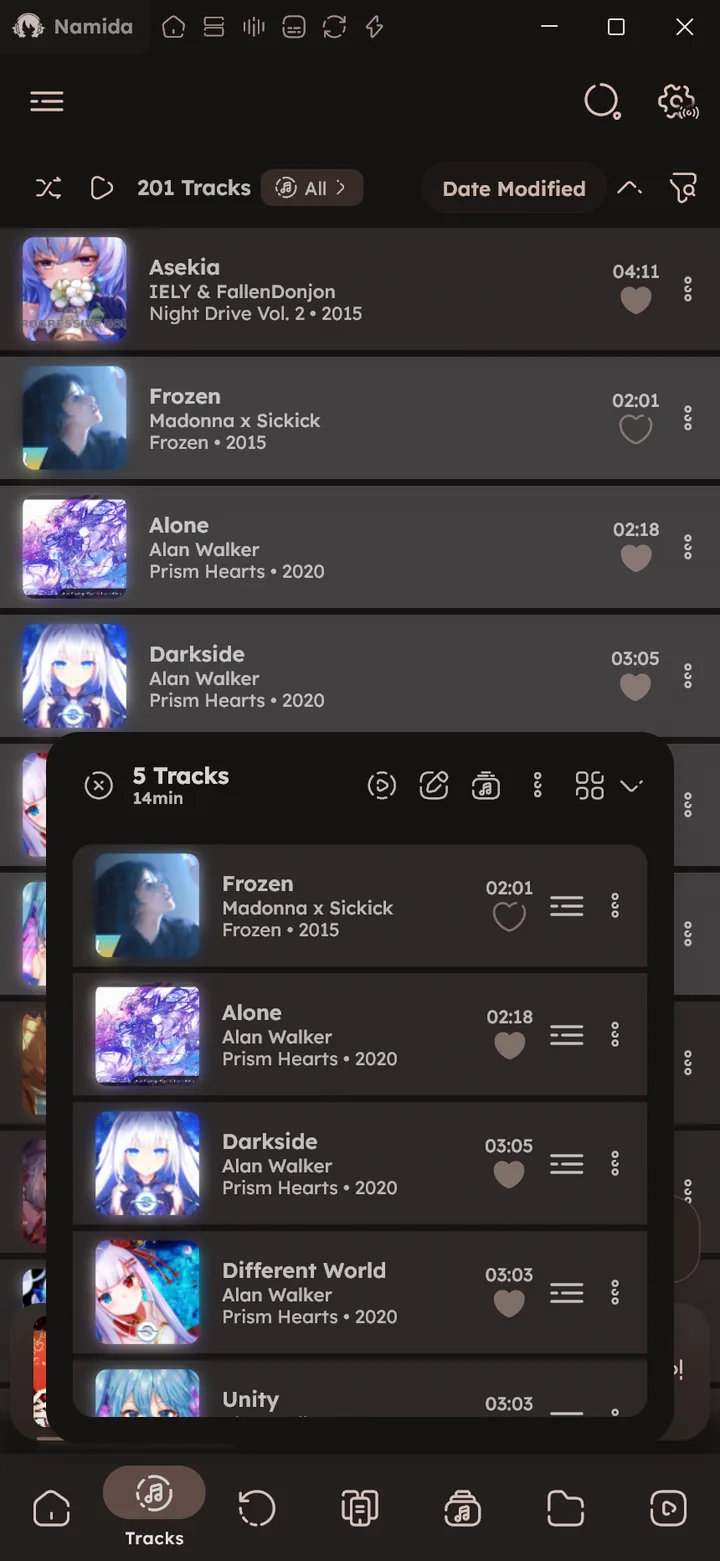
- Long press a track to start selecting, long press another one to select everything in between.
- Selection is global, you can keep adding tracks from different pages and albums into the same list, then act on all of them at once.
- The select all icon in the bottom row selects everything in the current page.
- On desktop, holding
Shiftand clicking works like a long press.

Search
- Swipe up on the search button to open the keyboard, swipe down to close it.
- Pasting a YouTube link or a playlist link in the searchbar automatically opens it.
- When playing from search, you can choose the Play Mode: selected track only, search results, album, first artist or first genre.
- Links and texts you copy can appear right in the searchbar, enable Clipboard Monitoring.
- Settings has its own search, press the Search button in settings.
- It finds options inside settings too, like “Sakura”.
🆕 v7.8.0 - The “Changed” chip there lists every setting you changed, each with a button to reset it.
🆕 v8.2.0
- It finds options inside settings too, like “Sakura”.
- Your recent searches can be saved and shown in the search page, enable
RECENT_SEARCHESin the Extras Flags.
Player
- Tap the current position to seek backwards, tap the total duration to seek forwards (by the Seek Duration).
- Hold them to keep seeking (rewind/fastforward).
- Long press the previous button to jump to the very start of the track, and long press the next button to speed up playback while you hold it.
⚙️ Configure Long Press Speed ↗ - While seeking, swipe upwards to cancel. Seeking near the starting edge snaps to the very start.
- Swipe the miniplayer left or right to change tracks.
- Works on the fullscreen lyrics and the widescreen player lyrics too.
🆕 v8.2.0
- Works on the fullscreen lyrics and the widescreen player lyrics too.
- Shuffle is a toggle, it shuffles the queue itself and turning it off brings back the original order. Long press it for a one time Shuffle Next or Shuffle All.
🎉 Queue System ↗ - The repeat button has its own shuffle flavor, Repeat All Queue (Shuffle) reshuffles the queue each time it reaches the end.
🎉 Repeat Modes ↗ - Artwork gestures are configurable, tap and long press can do different actions, and double tap can toggle lyrics, see Artwork Gestures.
- Long press the lyrics to enter fullscreen, and pinch the lyrics to change the font size. On desktop it’s
Ctrl+ mouse wheel orCtrl++/-, andCtrl+0resets it. - Long press the audio button in the player for a quick menu with the Audio path and Playback Settings.
- Long press the video button in the player to control quality or change the audio track for videos.
- Press the subtitle icon in the video controls to pick a subtitle, the language you pick is remembered for next videos.
🎉 Subtitles feature ↗ - Long press the lyrics button (right click on desktop) to configure lyrics for the current track, or embed them into the file.
🎉 Lyrics Picker ↗ - Long press a sleep timer preset to remove it.
🎉 Sleep Timer ↗ - Press the info text in the player to open the track menu, and press the album name at the top to open the album.
- Long press the heart icon to add the current track to a playlist.
- To switch the artist/title locations, toggle “Display artist before title” in Customizations.
- Audio configs (speed, pitch, effects) can be set per item, open the Sound Control page with the audio effects icon in the player.
- In the equalizer’s Sliders view, letting go of a band close to 0 snaps it to exactly 0.
- Long press an empty spot in the equalizer curve to add a band right there.
🎉 Equalizer ↗ - Playing the current track from another list rebuilds the queue silently without interrupting playback.
- Open any track’s dialog and press play to quickly start a new queue with only that track.
- Zoom in on the video in the local player to enter fullscreen.
- Namida can play loop animations, link a very short video to a track and it loops while the track plays. Embedding an animated gif or webp as the artwork works too.
📒 Loop Animation Guide ↗
Track Menu
Long press a track (or tap its menu) for more than you might expect:
- Play Next, Play Last, and Play After (pick an exact position in the queue).
- For a track or video that’s already in the queue, long press them to move it there instead of adding it again.
- Repeat for N times before playing the next track.
- Stop after this track, works on any upcoming track in the queue, not only the playing one.
- Insert after latest inserted, for stacking multiple tracks one after another.
- Set Rating, Moods and Tags, they get their own library pages. For many tracks at once, use the “Set Rating” icon beside Edit Tags.
- Set Youtube Link, attach a video to any local track.
- Add more from this Album, Artist or Folder to queue.
- Long press the + to configure what gets added.
🆕 v8.2.0
- Long press the + to configure what gets added.


Advanced Dialog
The track menu has an Advanced section:
- Copy or move the files to another folder.
- Clear specific things for that track: artwork, thumbnail, plain or synced lyrics, video cache, audio cache and server cache.
- Delete the files from storage, deleted paths are saved to a file in the app data folder just in case.
- Share the files.
- See which sources the listens came from, useful after importing a history.
- Set the track as a ringtone, a notification sound or an alarm.
- Re-index the track, good after editing it outside Namida.
- Replace all listens of a track with another track.
- Edit the color palette of the track, add or remove colors and pick a mix.
- Selecting many tracks from the same folder also shows Update Directory Path right there.


Library Pages
- Pull down to refresh: the tracks page refreshes the library, the playlists page refetches M3U & server playlists, and YouTube pages refresh their content.
- In media subpages (album tracks, artist tracks, etc), long press the filter icon to quickly open a smart playlist with that media name.
- In media pages, long press the grid icon to choose a specific count per row (higher numbers can cause performance issues).
- In the tracks page and media subpages, long press shuffle/play for advanced options.
- Play can sort the tracks, and skip the ones below a minimum (like a rating of 75% for your top rated only).
🆕 v7.8.0 - Shuffle can pick a number of tracks (with a minimum too) and exclude your most recent listens.
🆕 v7.8.0
- Play can sort the tracks, and skip the ones below a minimum (like a rating of 75% for your top rated only).
- In an album, artist, playlist or folder dialog, the options button beside Play All or Shuffle opens the same options.
🆕 v7.8.0 - Tap the resume button in media subpages to resume from the last played track, and long press it to jump to that track.
- In the Home page, tapping a Recent Queues card that was played from a playlist or folder opens that playlist or folder, long press it to open its dialog.
📄 Home Page ↗ - With a network image source enabled, open an album or artist dialog and press the edit icon at the top right to change its display image. Playlist artworks can always be edited.
- This only changes the display image, the audio files and their tags are untouched.
- Open the dialog of an album, artist, playlist or folder and press Stats to see listen stats for just those tracks.
- The current queue, the stats page, smart playlists and the listening party can be library tabs of their own.
📄 Queue Tab ↗📄 Stats Tab ↗ - Tabs with variants (like Tracks: Audio or Folders: Videos) share one slot in the navigation bar, long press it to switch.
⚙️ Configure Library Tabs ↗- Long pressing the YouTube tab jumps to one of its sections.
🆕 v8.2.0
- Long pressing the YouTube tab jumps to one of its sections.
- In the playlists page grouped by tags, long press a tag header to select all its playlists.
🆕 v8.2.0 - In an artist page, long press the icon of the albums, EPs or singles row to sort them.
🆕 v8.2.0 - Press the map icon in an artist page to see where that artist sits among the rest of your library.
📄 Artists Map ↗ - Tapping or long pressing a track’s thumbnail can run an action of your choice, like play next or open its info.
⚙️ Configure Artwork Gestures ↗
Downloading
- While downloading from YouTube you can edit the file tags and build the output filename with yt-dlp style formats, like
%(title)s [(%(channel)s)]. - This works for single downloads and for batch playlist downloads, where playlist formats like
%(playlist_autonumber)snumber the files for you. - In a playlist download page, selecting the output folder automatically marks the videos that are not downloaded yet (as long as you haven’t selected any manually). The long press to select in between trick works there too.
- In the download sheet, press the “show webm” icon button to show experimental qualities, see also
ALLOW_EXPERIMENTAL_CODECS&PREFER_OPUS_FORMATin Flags. - The flash icon in the downloads page sets how many downloads run at once (up to 10) and how many connections each download uses.
📄 Downloads Page ↗ - Long press a chapter in the YouTube miniplayer to download only that chapter, or turn on “Split by Chapters” to save every chapter as its own file.
🎉 Chapter Downloads ↗ - Use “Cache” instead of download on a video or a playlist to keep it for offline playback without saving any files.
🎉 Caching ↗
YouTube
- In the player, press the arrow down to open the current video’s menu. You can add it to favourites from there, which is separate from liking (liking is tied to your YouTube account, while favourites live in Namida only).
- Long press the copy button on a video to copy specific info, like the title, link or channel.
- Signing in to your account can provide better download speed and fix some playback issues.
- You can import your history, playlists and subscriptions from a YouTube takeout.
- Set a cached video’s priority to VIP so it never gets auto deleted. Private and deleted videos become VIP automatically.
- Namida can show info of private and deleted videos, thanks to Filmot.
- In the YouTube search tab, offline search is very useful to find videos you watched previously. You can sort results by most played, recent listen or first listen, or turn on the “Cache” chip to see only what plays offline. Import your YouTube history for better results.
- Long press a chapter in the miniplayer to copy a link to its timestamp.
- Take a snapshot of a channel or playlist: open the videos tab, press “load all”, wait, then open the menu and add to a playlist.
- Type
after:2024-01-01orbefore:2023-06in the search text to filter by upload date, or use the filters row.📄 Search Filters ↗ - In a channel page, the time range icon lists only videos uploaded after or before a date.
- In the YouTube page, tap the selected section again (like Home or Playlists) to switch it between Namida and your account.
🆕 v8.2.0 - Extra experimental switches hide behind the flag icon in Youtube Settings and Extras Settings.
History
- Tap the calendar icon at the top to jump to a specific day.
- Tap a year chip to jump to the same day but in that year.
- The search icon beside the year chips searches your history.
🆕 v8.2.0 - Most Played supports custom time ranges, see your top tracks of any period. Use the slider to navigate adjacent periods more easily, or pick a single day with a days radius.
- Open a track’s listens dialog, tap a listen to jump to that day in history, or use the button beside it to open Most Played for that range.
- After jumping, arrows at the bottom move between its other listens.
🆕 v8.2.0
- After jumping, arrows at the bottom move between its other listens.
- Replace all listens of a track with another track, useful after re-downloading a file (Track’s Dialog -> Advanced -> Replace all listens).
- Imported a wrong source? Remove it from history in one go.
- The Stats page has charts for any time range, and a Your Year wrap up shows up on the Home page every December and January.
📄 Stats Page ↗ - Long press any chart card to copy its values as text, press its share icon to save it as an image, or use the share icon in the app bar to export all of them at once.
- The Total Listens donut can be split by genres, styles, moods, tags, artists, album artists, composers or albums, press the category icon on the card.


Info & Sorting
- Tap any item in the track info dialog to copy it.
- In a track, album or artist info dialog, tap the artwork to open it in fullscreen, then long press it to save it to storage. Double tap to zoom into a spot, or use the mouse wheel on desktop. You can zoom in until single pixels show, and they stay sharp.
- Covers made from several tracks (like in a playlist page) open in a swipeable viewer when you tap one of their images, use the arrow keys on desktop. The viewer can save the whole collage too.
🆕 v8.2.0 - Sort by more than one property (like artist, then year, then title). Press Advanced in any sort menu to pick and reorder them.
- Available for tracks, and now albums, artists, genres and playlists too.
🆕 v7.8.0 - Press the arrow beside a sorter to reverse only that one.
🆕 v8.2.0
- Available for tracks, and now albums, artists, genres and playlists too.
- Sort by Random (Daily) for a random order that stays the same all day, and changes the next day.
🆕 v7.8.0 - The tag editor keeps file dates by default, so edited tracks don’t jump to the top of Recently Added.
🎉 File Dates ↗ - Moved your files? The Missing Tracks page relinks them without losing stats.


Folders
- Put a
cover.jpg(or similar) image inside a folder to use it as the folder artwork. - Put a
.info.txtfile inside a folder to display small info about it. Refresh the library after editing it to see the changes. - Set a specific folder as default, Namida opens it on app launch.
- With “Enable Folders Hierarchy” on, a folder’s menu button shows only the tracks directly inside it, long press the button or the folder itself to include tracks from all subfolders.
📄 Folders Page ↗
Scrolling
The scrollbar needs a short hold before it starts dragging. This is intentional, most apps have a big instantly draggable scrollbar (which usually causes many accidental scrolls). Namida keeps the minimal design instead.
Turn on SCROLLBAR_THUMB_LABEL in the Extras Flags to see the letter or date you’re at while dragging. 🆕 v7.8.0
Colors
- In the color palette dialog, long press a color to remove it, and tap a mix to use it as a default color.


About Page
- Have an issue? Press “Report an issue” in Settings -> About, it fills in your version and device info and gets the logs ready.
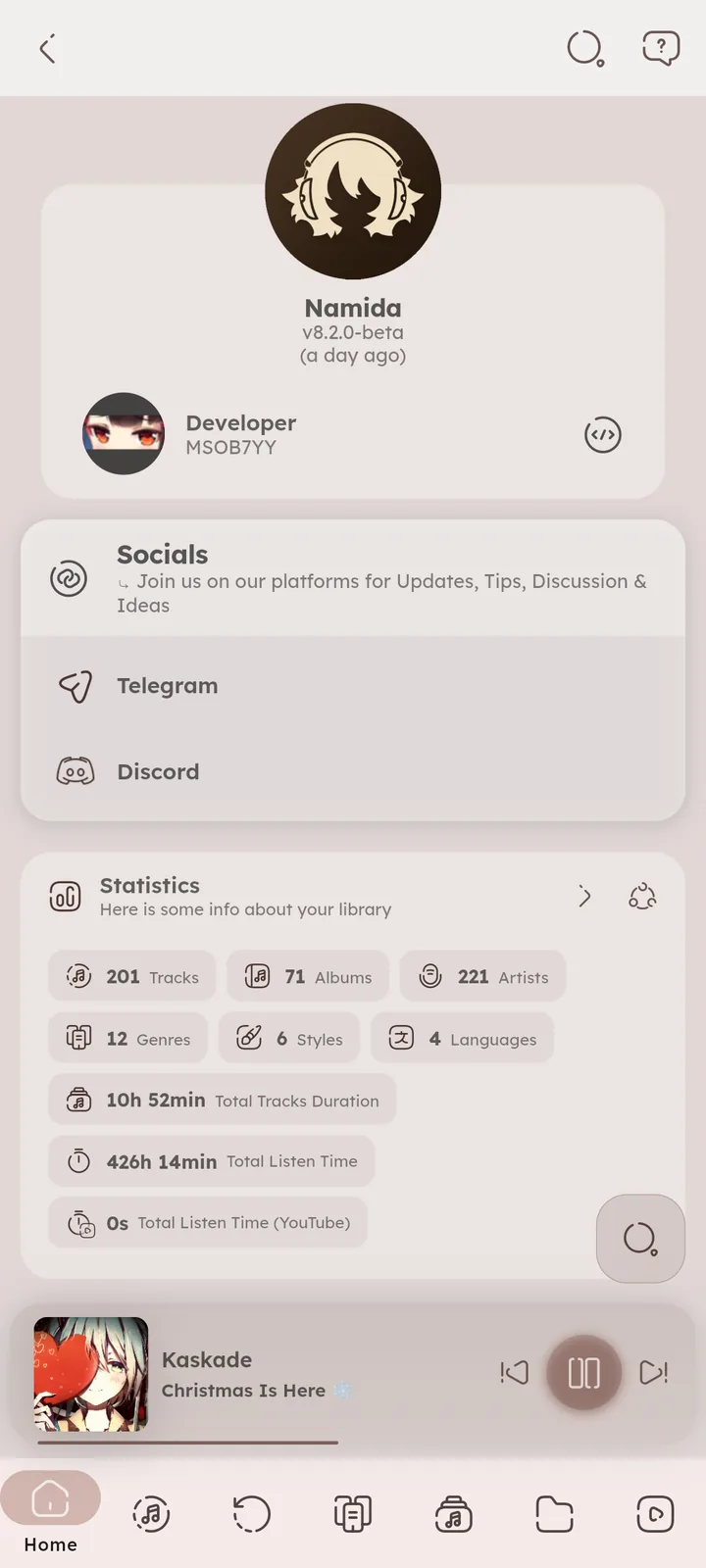
📄 About Page ↗ - Check your version there too, and an icon appears on the app bar when there is a new version.
- Open the side menu and press the Namida logo to open the About page.
- Do NOT press the logo in the About page!! or something very scary will happen!!!1!
- Use the Jellyda app icon with Jellys Invasion on, then open the About page for a cool ambient experience 😉


Misc
- Long press or hover on any icon to see a tooltip explaining what it does.
- Pages that have a docs page show a guide icon in the app bar, it opens the matching page here (even offline
🆕 v8.2.0). - Tag editor and smart playlist fields suggest values from your library as you type.
- Supporter features for free? Yup, if you find the eggs Namida hid around the app, the hints are in About -> Eggs. Try reading the dialog that shows too, and maybe fight it a little.
📄 Eggs ↗
Desktop
- Rate the current track instantly with
Ctrl+Alt+1..9, see all Shortcuts. - Assign your own system-wide hotkeys for playback actions from About, then Shortcuts.
Ctrl+Alt+Lshrinks Namida into a small lyrics window,Escbrings it back.🎉 Mini Lyrics Window ↗- On a wide window, the maximize icon at the top left of the expanded player opens a two pane layout with lyrics/queue beside the artwork/video.
🎉 Widescreen Player ↗ - Closing the window keeps Namida in the tray, click the tray icon to bring it back. Change this in Kill Player After Dismissing App.
Ctrl+ mouse wheel zooms, works on the lyrics font size and on the cards of a playlist download page.Ctrl+0resets it.🎉 Zoom Shortcuts ↗- Drag files onto the window and drop them on Play, Play Last or More.
🆕 v8.2.0
Android
- Add the Namida tile to your quick settings panel to play and pause from anywhere, and the Namida Shuffle tile to toggle shuffle.
🎉 Quick Settings Tile ↗ - The home screen widget can be configured.
🎉 Home Screen Widget ↗ - Namida shows up in “Open with” and in the share sheet for audio, video, m3u files and YouTube links.
🎉 Open With & Share ↗
Page ConnectionsOpen in graph ↗
Linked from
Links to
- Features
- PlaybackGestures, Track Menu
- Playlists & HistoryHistory
- Tag EditorMultiple Tracks Editing
- Other PagesAbout
- WelcomeQuickstart
- What's New🏷️ v8.2.0, 🏷️ v7.8.0
Tips & Tricks
- Library & IndexingFile Dates
- PlaybackQueue System, Repeat Modes, Equalizer, Audio Path, Lyrics Picker, Widescreen Player, Sleep Timer
- Subtitles
- YouTubeChapter Downloads, Filename & Tags Formats, Caching & Offline Playback, Takeout Import
- Home Screen Widget
- System IntegrationOpen With & Share, Quick Settings Tile, Mini Lyrics Window
- ShortcutsZoom
- LibraryHome, Artists Map, Folders, Queue, Stats, Moods, Tags & Rating, Search
- YouTube PagesDownloads, Filters
- Other PagesStats, About
- ThemeAuto Coloring, Default Color
- IndexerRefresh Library & Re-index, Missing Tracks
- PlaybackKill Player After Dismissing App, Long-Press Action: Speed, Seek Duration
- CustomizationsTrack Tile Customization, Miniplayer Customization
- YoutubeFlags
- ExtrasLibrary Tabs, Enable Clipboard Monitoring, Flags
- AdvancedRemove Source from History
- Namider GuidesPlay a loop animation with a track
- MembershipEggs
Author: @MSOB7YY
Writer: @claude
