
Tag Editor
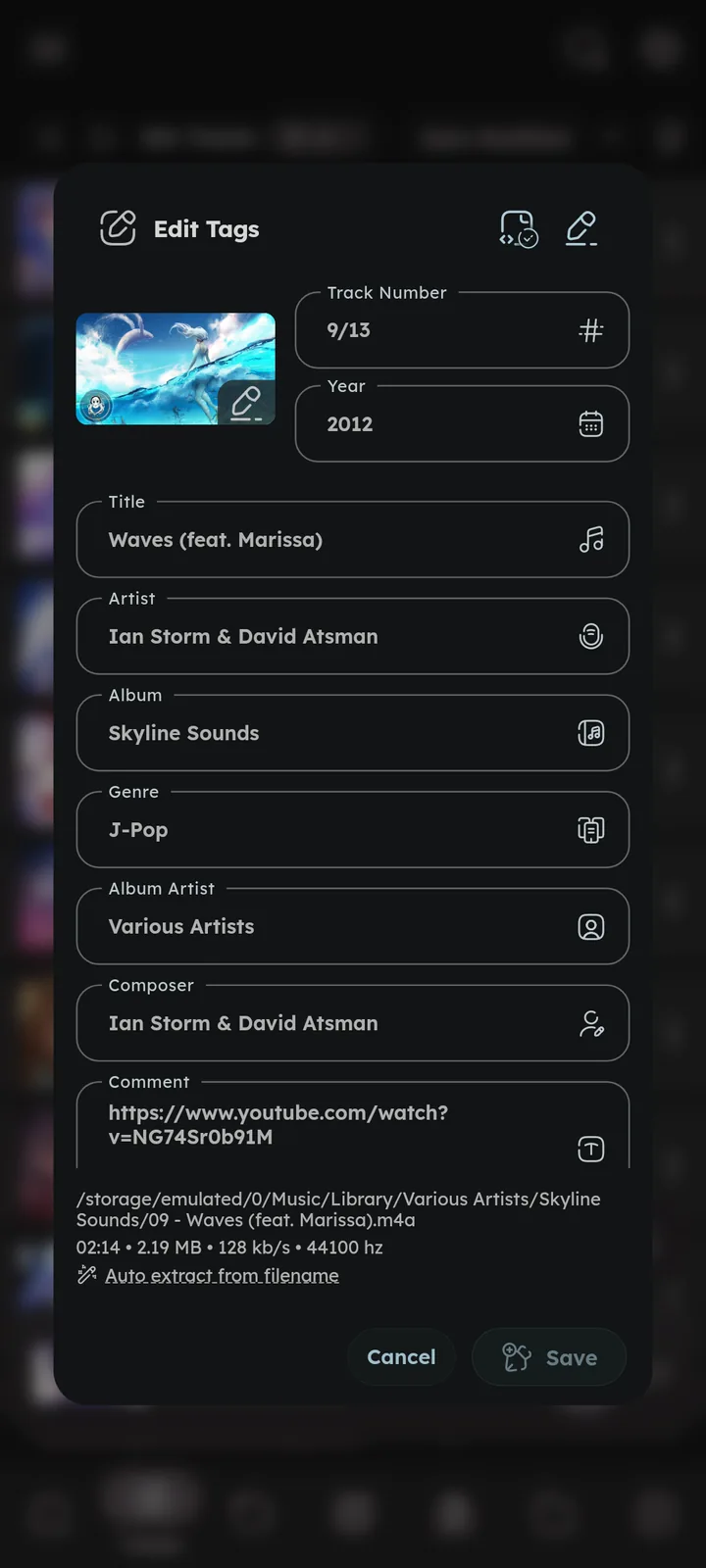
A powerful tag editor powered by taglib.
Single Track Editing
Edit title, artist, album, genre, year, lyrics, comment, rating, moods and more, along with the artwork.
Fields the file holds as separate values (like several artists) show joined with ; , and stay separate values when saved. 🆕 v8.2.0



Multiple Tracks Editing
Select multiple tracks and edit them at once (unchanged fields remain untouched). Useful for fixing a whole album or artist.
🆕 v7.4.0
- Values shared by all tracks are filled in already. When tracks have different values, the field shows
<Multiple values>and stays untouched unless you type something. - Each field has a menu on its right: Undo, Clear, Find & replace, and the list of existing values with their track counts (tap one to set it for all tracks).
- Find & replace uses the same text filters as smart playlists (contains, starts with, regex and more), with a Match case switch and a live preview of what changes.
- Some fields that are empty in all tracks (like Lyricist or Record Label) are grouped under “More”.
- Editing from an album gives an “Auto track numbers” switch, it numbers tracks by their current order, per disc.
- Moods, tags and rating are edited at the bottom. Values that only some tracks have show how many tracks have them, tap to add them to all tracks, remove them, or keep them as they are.
- Before saving, a summary lists every change and how many tracks it affects.
Moods, tags and rating can also be set for many tracks without opening the tag editor, press the “Set Rating” icon at the end of the Edit Tags row in the tracks menu.


Suggestions
🆕 v7.0.0
Fields like album, artist, album artist, composer, genre, style, moods and tags suggest values from your library as you type (so names stay consistent). Fields that hold multiple values keep suggesting after each separator. The same suggestions show up while building 🎉 Smart Playlists ↗ rules.
Language suggests every language, the ones written in the script of the lyrics or title first. 🆕 v8.2.0
Keep File Dates
Saving tags normally changes a file’s date to today. “Keep file dates” (on by default) keeps the original date instead, so edited tracks don’t jump to the top of Recently Added or move in date sorts. Toggle it with the icon at the top right of the tag editor. 🎉 File Dates ↗
Auto Extract from Filename
Fill tags automatically from the filename pattern, handy for files with empty tags.
Editing files requires storage access on Android.
WEBM format does not support tag editing.
Related Settings
Author: @MSOB7YY
Writer: @claude
