
Lyrics Editor
🆕 v8.2.0
Create synced lyrics from scratch, or fix the timing of lyrics you already have. Sync line by line or word by word (karaoke style), with a waveform to help you find the right spot. Works for local tracks and YouTube videos.
Opening the Editor
Long press the lyrics button in the player (right click on desktop) to open the lyrics picker, then:
- Press the edit icon on any lyrics to edit them (synced or plain, local, online or embedded).
- Press Add to write new lyrics from scratch.
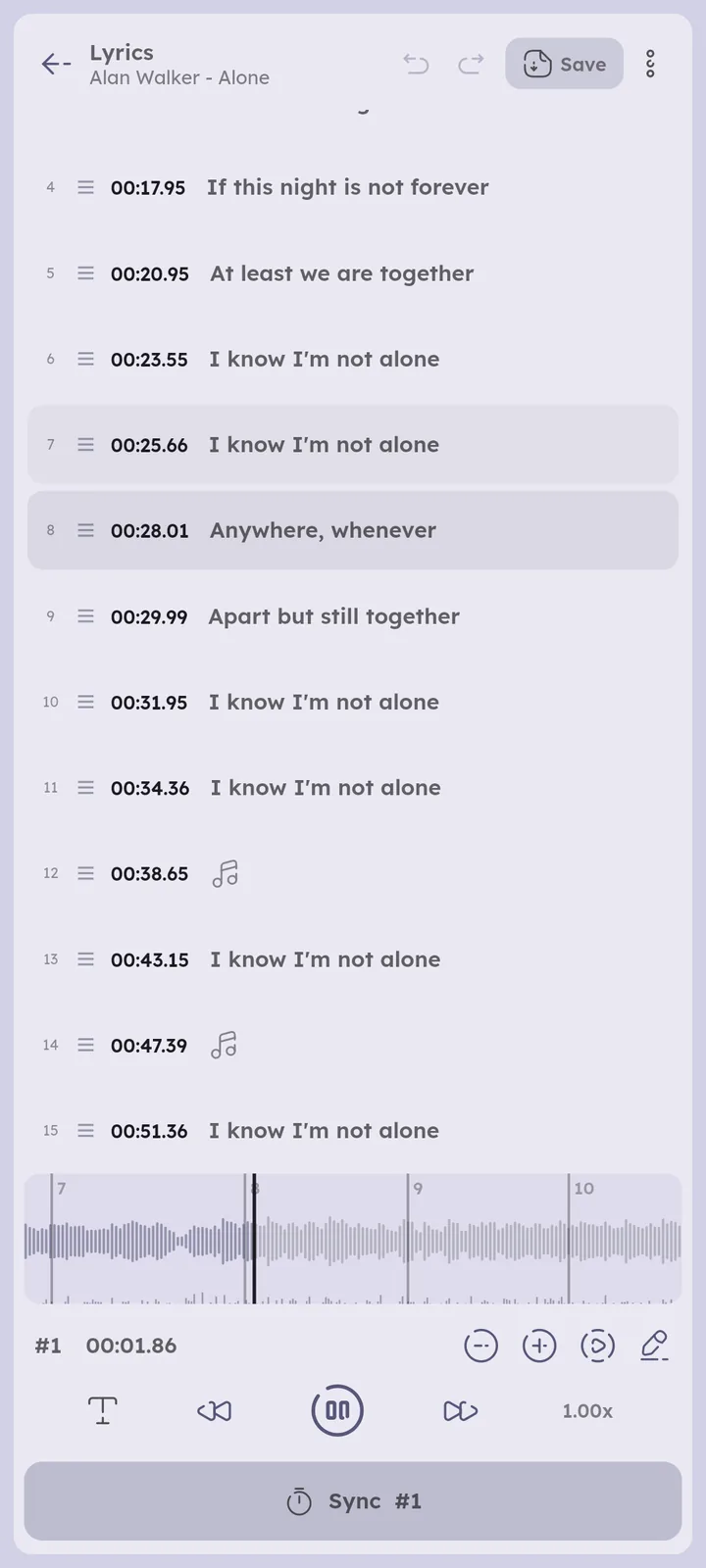
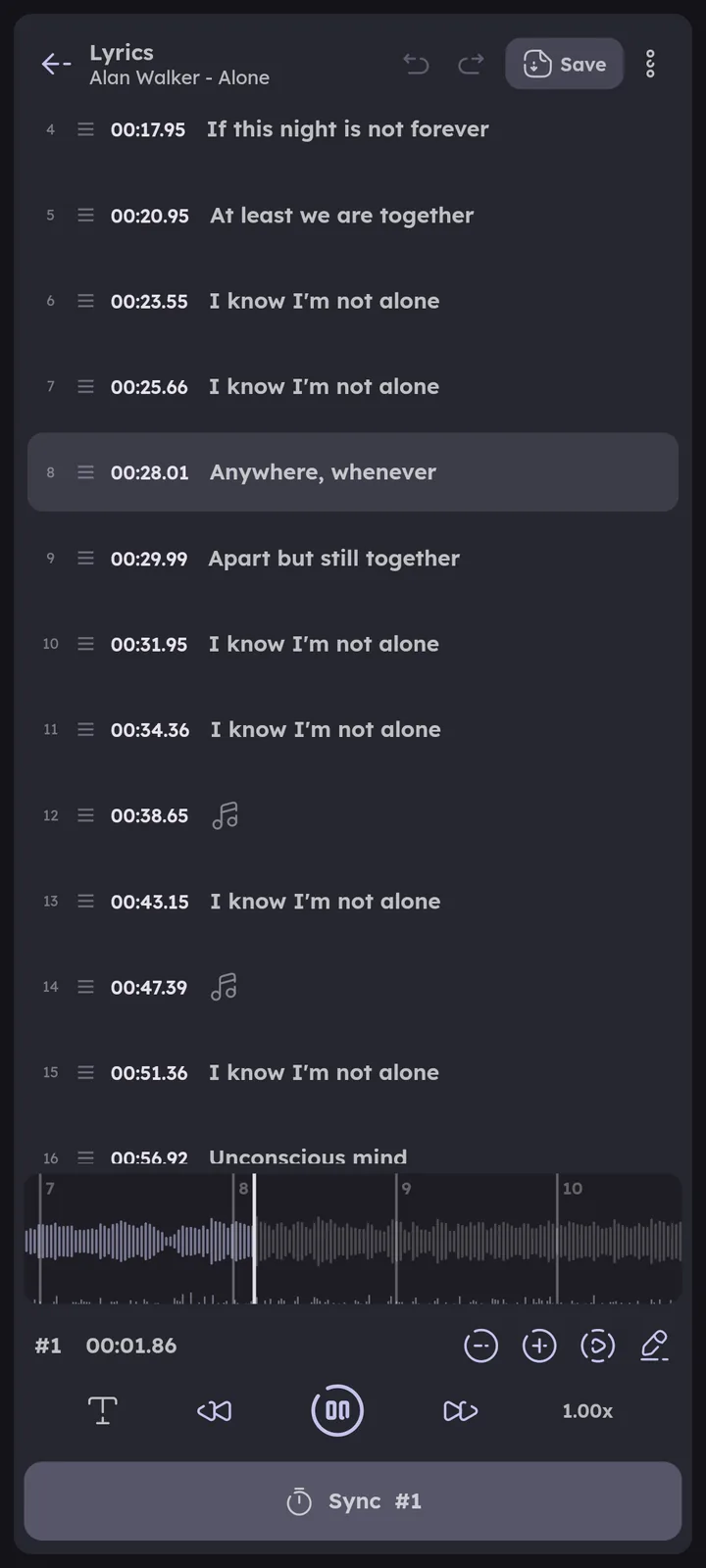
The editor syncs against the track it was opened for. If something else is playing, the Sync button shows Play instead, which plays the track next in your queue. On a wide window, the controls sit next to the lines instead of under them. 🎉 Lyrics Picker ↗


Getting the Text In
New lyrics open the Text dialog right away, type or paste the lyrics (one line per line) and press Save. Empty lines are skipped.
Open Text from the ⋮ menu any time to edit all lines at once. Lines you keep keep their timing, a changed line keeps the timing of the line it replaced, and new lines start without one.
Pasting synced lyrics (LRC, or subtitles like SRT) replaces everything instead, timing included.
Syncing Lines
- Tap the first line to select it (the selected line has a border).
- Play the track and press Sync when the line starts. The line gets the current time and the next line gets selected.
- Keep going until the end, then press Save.
Tapping a line also jumps to its start. The line being played is highlighted, and the list follows it (after you scroll it yourself, it waits a few seconds before following again).
Instrumental breaks are empty lines (shown as ♪). Sync them where the singing stops, so the lyrics hide during the break. To add one, long press a line and press Add.
While paused, Sync uses the exact position. Seek to the right spot with the timeline or the -2s / +2s buttons, then press Sync.
Syncing Words
Turn on Word by word (the T button next to the playback controls). The Sync button now shows the next word:
- Press when the word starts and release when it ends, so hold it while the word is sung.
- Pressing again right after releasing joins the two words without a gap, so tapping fast through quick lyrics works fine.
- After the last word, the next line gets selected.
The words of the selected line show as chips under the line tools, synced words are filled. Tap a chip to pick the word the next press goes to, or long press it for:
- Merge, joins it with the next word.
- Edit, renames it, or splits it with
|(likebeau|ti|ful). A synced word shares its time between the pieces.
Words are split at spaces, languages written without spaces (like Chinese and Japanese) get a word per character.
Lines synced word by word show a T icon in the list. Syncing such a line again in line mode moves its words along with it.
The Selected Line
The bar above the playback controls works on the selected line:
- Its time, tap it to edit the line.
-/+, moves the line 50ms earlier or later, hold to keep moving.- Play, plays the line from its start and pauses where the next line starts.
- Edit, opens the line dialog.
Editing a Line
The line dialog has:
- Start, the time as
mm:ss.xx. Leave it empty to remove the timing. A new time moves the line to its place in time order. - Text.
- Translation, shown under the line in the lyrics view.
- Singer, none,
v1andv2for duets, orbgfor background vocals. Background vocals are only saved as such when the lyrics have word by word sync, otherwise they are saved as normal lines.
Long press a line for Play, Edit, Add (a new line under it), Clear (removes its timing) and Delete. Drag the handle next to the line number to reorder lines.


Timeline
The strip above the line tools shows 8 seconds of the waveform around the play position, with a numbered marker at the start of each line.
- Tap a marker to select its line, tap anywhere else to seek there.
- Drag a marker to move its line (words move along), when you let go the line moves to its place in time order.
- Drag anywhere else to scrub, the track seeks when you let go.
- The words of the selected line show as small bars near the bottom.
The thin lane at the very bottom shows where the vocal range gets louder, new syllables usually show up as spikes there. It is only a hint (drums can trigger it too), and it gets prepared in the background the first time a track is opened in the editor.
Playback Controls
- Word by word, see above.
- -2s / +2s.
- Play / Pause, pausing is instant here (no fade).
- Speed, cycles 1x, 0.75x and 0.5x. Slower helps with fast lyrics, and your normal speed comes back when you leave the editor.
Warnings
--:--.--, the line has no timing yet.- An orange time, the line starts before the line above it, or after the track ends.
Lines are saved in time order anyway, and lines without timing are left out (Save lists them before saving).
Tools
From the ⋮ menu:
- Text, edit all lines at once, see above.
- Preview, shows your edits in the fullscreen lyrics view without saving (when the track is the one in the player). The saved lyrics come back when you leave the editor.
- Offset, moves all lines, or only from the selected line to the end, by the given milliseconds (negative is earlier).
- Stretch Lyrics Duration, fits lyrics made for another version. Enter how much faster this version is, like
1.25for a nightcore version or0.8for a slowed one. - Clear, removes all timings to start syncing again.
- Latency, see below.
- Shortcuts, desktop only, see below.
- Discard, shown when there is a draft, see Drafts.
Undo and redo are in the header, for everything you do in the editor.
Latency
Latency is subtracted from every line or word synced while playing, for those who tend to press late. It is 0 by default and kept per device.
Audio delay (like bluetooth headphones) is covered by the VISUAL_TO_AUDIO_DELAY flag instead, the editor takes it into account too.
Drafts
Your work is saved as a draft a moment after every change, and a Draft badge shows next to the title. Leave whenever you want, opening the same lyrics again (or Add again for new lyrics) brings the draft back.
Discard (from the ⋮ menu) goes back to the lyrics you opened, after asking. Saving removes the draft.
Saving
Press Save to save the lyrics in your lyrics save location, they show in the player right away. For local tracks, Save also offers Embed, which writes them into the track’s lyrics tag.
- Lines without timing are listed first, and left out of the saved lyrics.
- If no line has a timing, the lyrics are saved as plain lyrics.
- If the track’s embedded lyrics are used instead of files, a note shows with a button to turn off Prefer embedded lyrics.
- If the track’s lyrics were set to Ignore, saving undoes that.
The saved lyrics are a normal LRC file that other players can read:
- Lines in time order, with word timing in the enhanced format (
<00:12.30>word). - Singers as
v1:/v2:, background vocals as[bg:...], and translations as a second line with the same time. - A
[length:]tag with the track duration, so Stretch lyrics duration can adapt them to other versions of the track. - Tags of the lyrics you opened (artist, title and so on) are kept. An
[offset:]tag is applied to the times instead of being saved.
Keyboard Shortcuts
💻 Windows+Linux only
| Shortcut | Action |
|---|---|
Enter |
Sync (hold it for a word) |
Space |
Play / Pause |
← / → |
-2s / +2s |
↑ / ↓ |
Previous / next line |
[ / ] |
Move the line 50ms earlier / later |
Ctrl + Z |
Undo |
Ctrl + Y or Ctrl + Shift + Z |
Redo |
Ctrl + S |
Save |
Related
- 🎉 Playback, Lyrics
- 🎉 Playback, Lyrics Picker
- ⚙️ Extras, Lyrics
- ⚙️ Extras, Lyrics Save Location
- ⚙️ Extras, Flags
Author: @MSOB7YY
Writer: @claude
