Listening Party
🆕 v7.4.0
Start a room, share the code, and everyone hears the same track at the same moment. Works over the internet or on your local network.
Listening parties are new and still evolving. If joining fails with a version mismatch, update Namida on both devices.
How It Works
One person hosts the room and owns the queue. Everyone else joins with a code or an invite link, and their player follows the room instead of leading it.
No audio is sent between devices. Each device plays its own copy of the track, kept in step with the room. To have the same files on every device, see 📒 Syncing Music Files Guide ↗
Open it from “Listening party” in the quick tiles at the top of settings, or from the side menu. It can also be a library tab of its own. ⚙️ Configure Library Tabs ↗
While you are in a party, a people icon shows in the app bar and in the queue, press it to get back to the party.
Starting a Party
Pick a name, or leave it empty to use yours, then create. You get an 8 character code, an invite link and a QR code to share. The share button sends the link along with what you are listening to.
Options while creating:
- Party password
- Listen on this device, turn it off to use the device as a remote control only
- Require approval to join, you accept or reject each person
- Start with current queue, the room opens with what you are playing (on by default)
- Public room, anyone can find it while browsing. With Share what’s playing, the public list also shows the current track
- Host on this device, for people on the same network (no server or membership needed)
- Custom server, the server URL and password of your own server, see below
Creating a room on the Namida server needs a cutie membership or higher (higher tiers allow bigger rooms and more open rooms at once), see 📄 Membership ↗. If you reach the limit, your open parties are listed so you can close one.
Joining is always free, and hosting on your own device or your own server needs no membership at all.


Joining
Paste an invite link or type the code, with the password if the room has one. On Android, opening an invite link opens the app and joins the room right away.
A code alone only works for rooms on the Namida server. Rooms on your local network or on a custom server need the invite link (since it carries the address).
- Public rooms are listed at the bottom, tap one to join. You can hide all rooms from a host you are not interested in.
- Rejoin lists the rooms you were in lately. Rejoining gets your seat back, without the password or approval.
- Your name is how others see you in the room. It is the same name your device uses in
🎉 Sync ↗, changing one changes the other.
Roles
- Host, owns the queue, can do everything, and can hand the role to someone else
- Admin, can control playback, edit the whole queue and chat, and can kick or ban guests
- Guest, can do whatever the host allows
Only the host changes the room options, accepts join requests, makes admins and unbans people.
The host picks what guests are allowed to do: control playback, add to queue, edit queue and chat. Each one is a separate switch, by default guests can add to the queue and chat. Guests can always remove or move the tracks they added themselves.
Leaving as the host gives two choices, leave or close the party for everyone.
If the host leaves or loses connection, everyone sees that the host is offline, and after a minute an admin (or the member who has been there the longest) becomes the host and the party continues. A party hosted on your own device closes once you leave.
Managing the Room
The host has a Host settings card in the Party tab:
- Guest permissions
- Require approval to join, requests show up in a Join requests card with accept and reject
- Public room & Share what’s playing
- Lock party, no one new can join (members who drop can still come back)
- Set or remove the password
- Banned members, with an unban button
Press a member to make them admin, transfer host, kick or ban them. A ban blocks both the device and its network.


The Queue
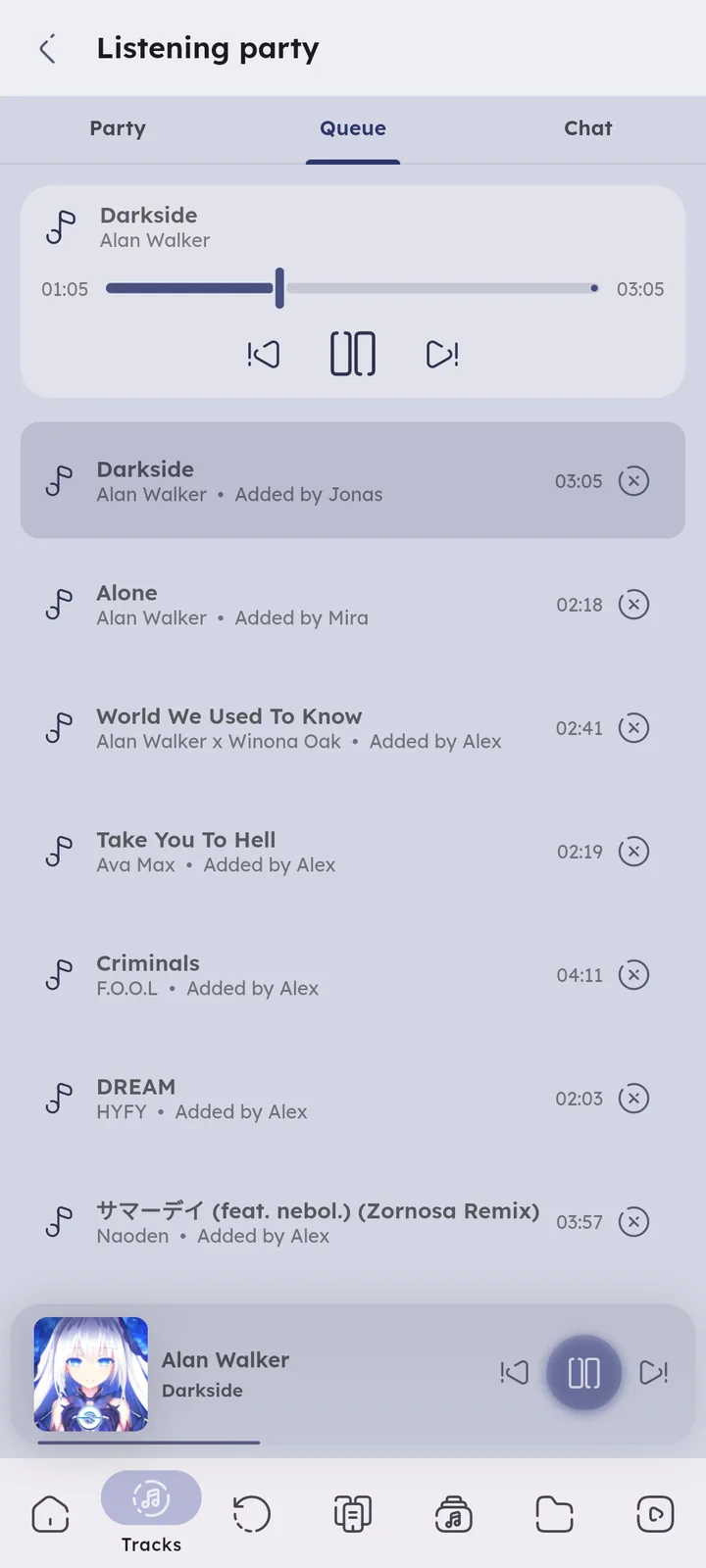
The room has one queue that everyone sees. Adding, removing and reordering works from the normal player queue, your action is sent to the host and comes back to everybody. When a guest plays a list, it gets added after the current track.
The room has its own repeat mode (starting with the host’s), and anyone with playback control can change it for everyone.
The modes work like in your normal player, except Stop on Last Track (which always goes back to the first track and pauses). 🆕 v7.5.0 🎉 Repeat Modes ↗
Local files are matched by title, artist, album and duration, so the same track on another device is found even in a different folder. 🎉 Smart Matching ↗
When someone doesn’t have the file, Namida plays a YouTube version instead: the video linked to the track if it has one, or a video found by searching for it. Found ones are marked with an info icon (since they might not be the right one). 🎉 YouTube feature ↗
Tracks that still have no match show “Unavailable on this device”. When the party reaches one, that device pauses and waits until the party moves on.

Your Player
Your player follows the room while you are in it:
- Without playback control, pausing only pauses your device, the party keeps playing. Press play to catch up.
- Repeat follows the room, see above, and speed and per track sound settings are ignored.
- Notification, lockscreen and headset buttons follow your permissions too.
Once you leave, your own queue comes back where you left it, paused. The party queue never replaces your saved queues. 📄 Queues Page ↗
Remote Control
Turn off “Listen on this device” and the device stops playing, but still shows the queue, the current track and the controls. Handy for controlling a party from your phone while a laptop plays. The switch is in the Party tab too, so you can change it anytime.
Chat & Reactions
Every room has a chat, people who join later can read the recent messages. Reactions float up with the sender’s name, press the pencil icon beside them to pick your own emojis.
The host can turn chat and reactions off for guests, and anyone misbehaving can be kicked or banned.


Played in This Party
Every track the party played is listed, even after you leave. Press “Save as playlist” to keep it, local tracks go to a normal playlist, and YouTube items go to a YouTube playlist with the same name. The list is cleared when you join another party or restart the app.
Privacy
- No accounts, joining needs nothing but a room code
- No audio ever leaves your device
- The server only passes messages along, it never reads them
- Nothing is kept after a room ends, and no room stays longer than 24 hours
While a room is open, the server holds the room code and options, the ban list, and for each person a display name, a device id and an IP address (used only for rate limiting and bans).
All of it is deleted when the room ends: the host closes it, nobody is connected for 10 minutes, or 24 hours pass.
Other people in the room see your name, the tracks you add and your chat messages. They never see your files, their paths, or your IP. When approval is on, your device id is sent to the host along with your request.
Rooms are unlisted unless you make them public. A public room shows its name, how many people are in it, and whether it needs a password or approval. It shows the current track only if you turn on “Share what’s playing”. Locked rooms are never listed.
A party on your local network never goes through any server. Opening the party page still checks your membership and loads the public rooms from the Namida server.
Self Hosting
Running your own server is possible, and it needs no membership. Put its address and password in “Custom server” when creating a room, the invite link carries the address for everyone else. See the relay repo.
Author: @MSOB7YY
Writer: @claude
