
Media Servers
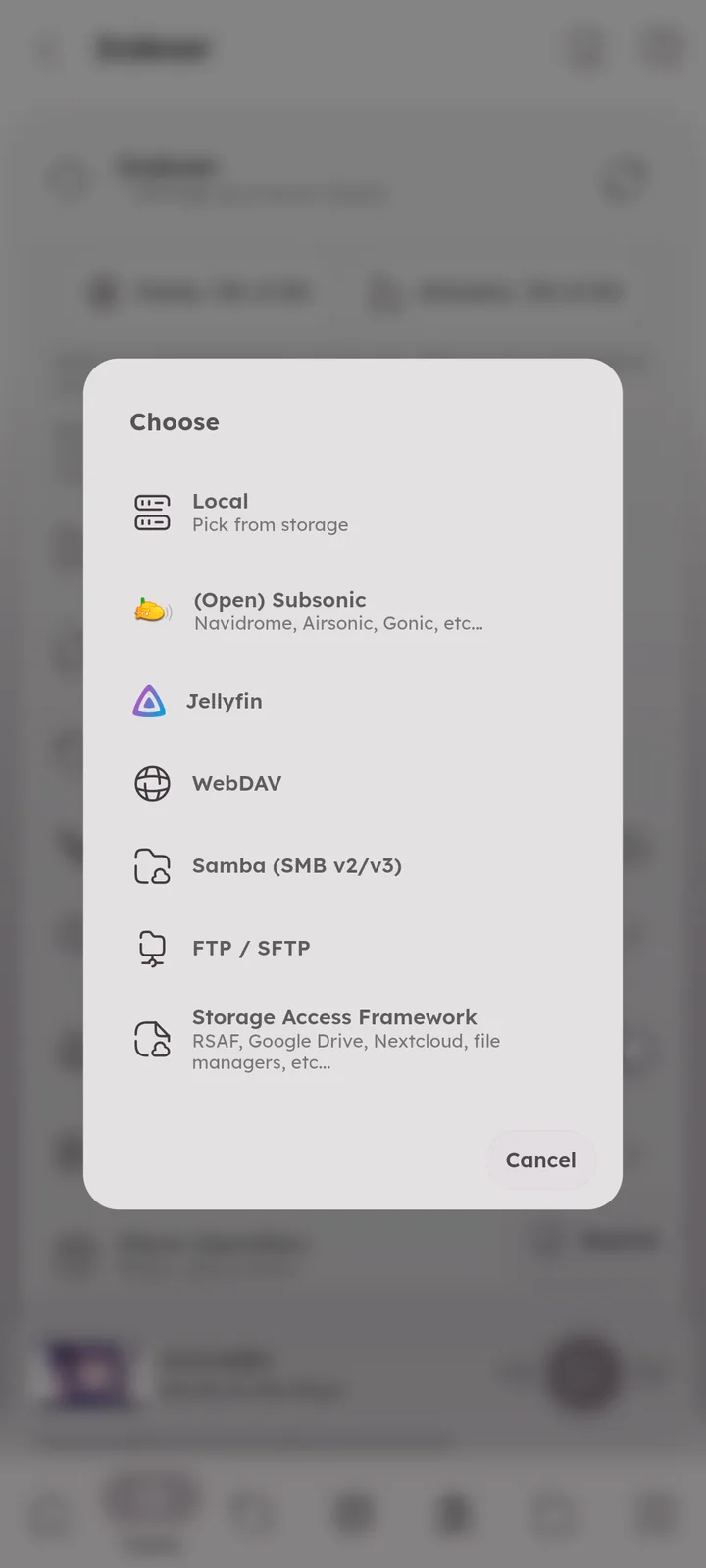
Multi library support, your library can mix local files with content from your servers.
Supported Servers
- Subsonic (including Navidrome and compatible servers)
- Jellyfin
- WebDAV
- SMB (network shares)
- FTP & SFTP
🆕 v8.2.0 - Storage Access Framework on Android, for folders from other apps (RSAF, Google Drive, Nextcloud, file managers, etc)
🆕 v8.2.0

How It Works
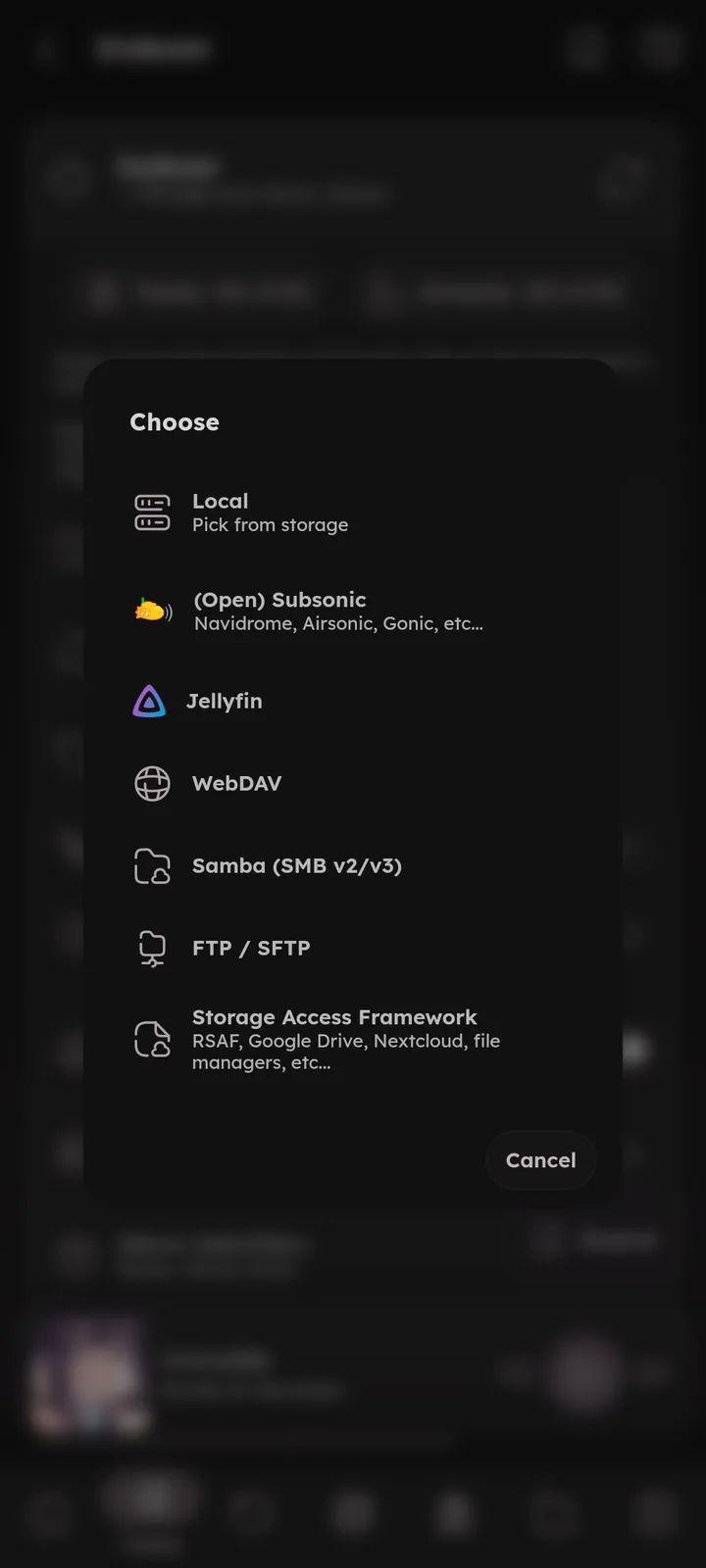
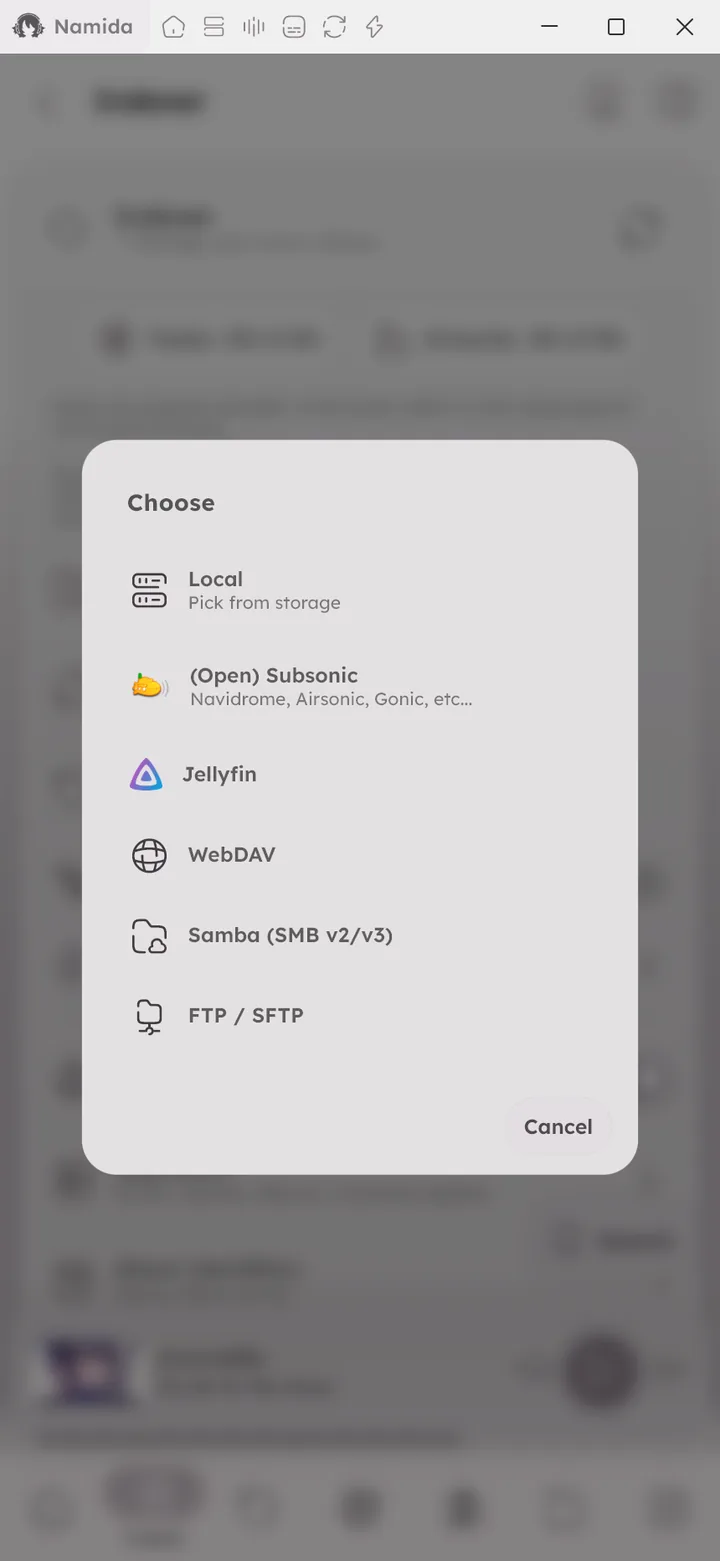
A server is added as a library folder in the indexer. Enter the server address and credentials, pick a library or share (if the server supports it), and Namida indexes it like any other folder. Tracks appear next to your local ones in every tab. ⚙️ Configure Folders ↗
Storage Access Framework folders are picked from the system file picker instead.
For Subsonic servers, tracks without their own artwork fall back to the album artwork.
Server tracks keep their folder structure in the Folders tab. 🆕 v8.2.0
FTP servers download files temporarily for indexing. Use a stable connection (preferably Wi-Fi to avoid high data usage).
Playback Reports
🆕 v8.2.0
Subsonic and Jellyfin servers see what you’re playing and count your plays. Listens made offline are sent to Subsonic servers once you’re back online. On by default, turn it off with the SERVER_PLAYBACK_REPORTS flag. ⚙️ Advanced Flags ↗
Server Playlists
Playlists from your servers can be auto imported on library refresh, see the 🎉 Playlists & History feature ↗.
Offline Caching
🆕 v7.4.0
Keep server tracks on your device to play them offline. Open the menu of a track, an album, a playlist or a selection, and press “Cache”. The original file is saved, even when the server streams a transcoded version (like Subsonic can).
- Server tracks that aren’t cached yet show a small download icon on their artwork.
- While caching, the artwork shows a progress ring, and an icon appears in the app bar. Press it for the list of tasks, where you can pause, resume, retry or cancel them.
- On Android, a notification shows the progress.
- On Windows and Linux, the notification when it’s done follows
⚙️ Download notifications ↗. - Tasks without a connection wait and continue once it’s back.
Cached tracks play from the device, even offline. Most streamed tracks are kept too (they get cleaned up once the server cache is full), but the ones you cached yourself are never deleted automatically. ⚙️ Configure Server Cache ↗
The server cache sits in User Data/Servers Cache. To remove a single track from it, open its menu, then Advanced, then Clear.
Related Settings
Author: @MSOB7YY
Writer: @claude
