
YouTube
Namida comes with a full YouTube section, powered by a custom client. Stream, watch, download and build your own YouTube library.
Streaming
- Best available video & audio quality, you can pick the quality manually too.
- Audio Only mode, play any video as music without loading the video.
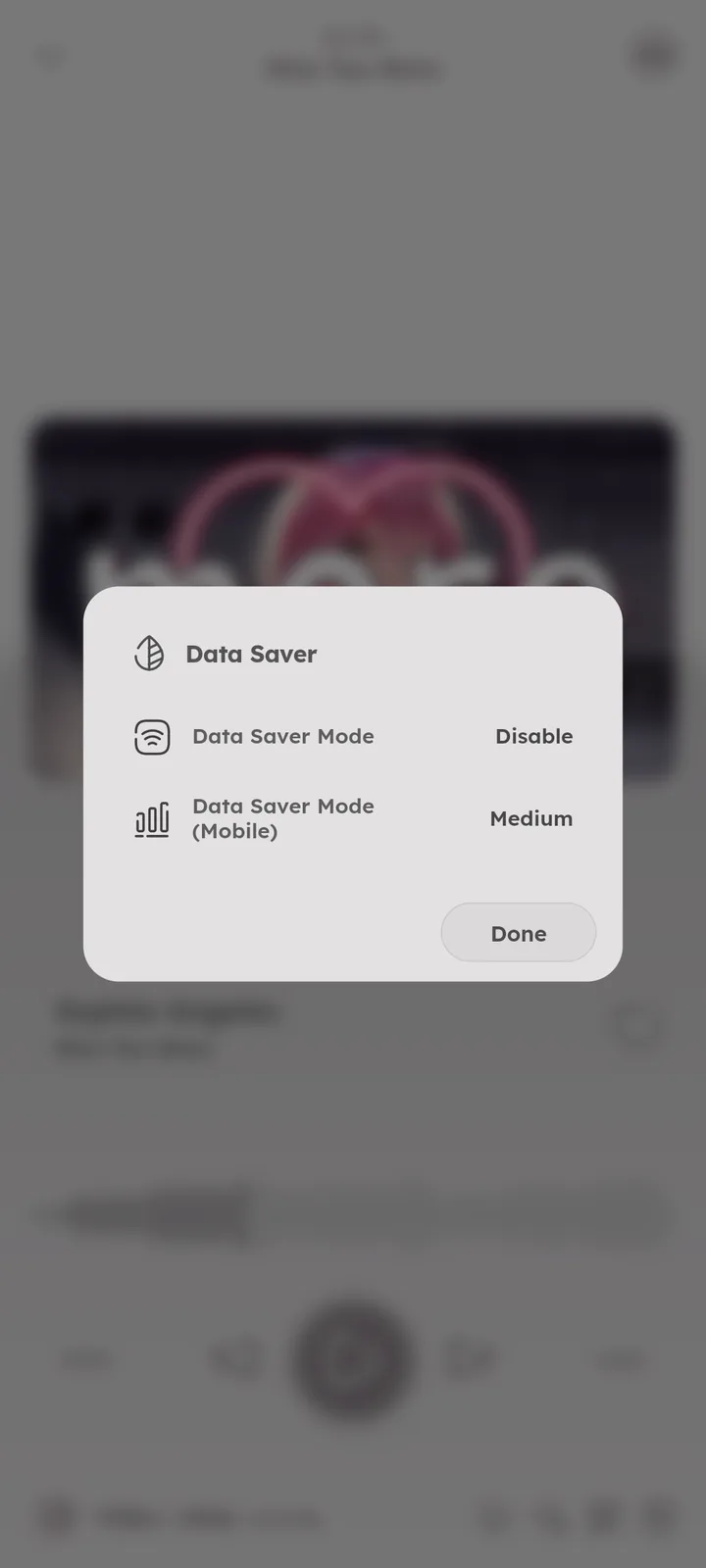
- Data Saver, skip loading video streams to save data, see below.
- Radio, auto start a queue based on the current video, using the YouTube Mix playlist.
Data Saver
Namida keeps two Data Saver values (one for Wi-Fi and one for mobile data), so you can be relaxed at home and strict outside. Three levels each:
- Disable, video is always loaded.
- Medium, audio only (except for shorts).
- Extreme, audio only, always.
Cached videos still play as videos, no matter the level.
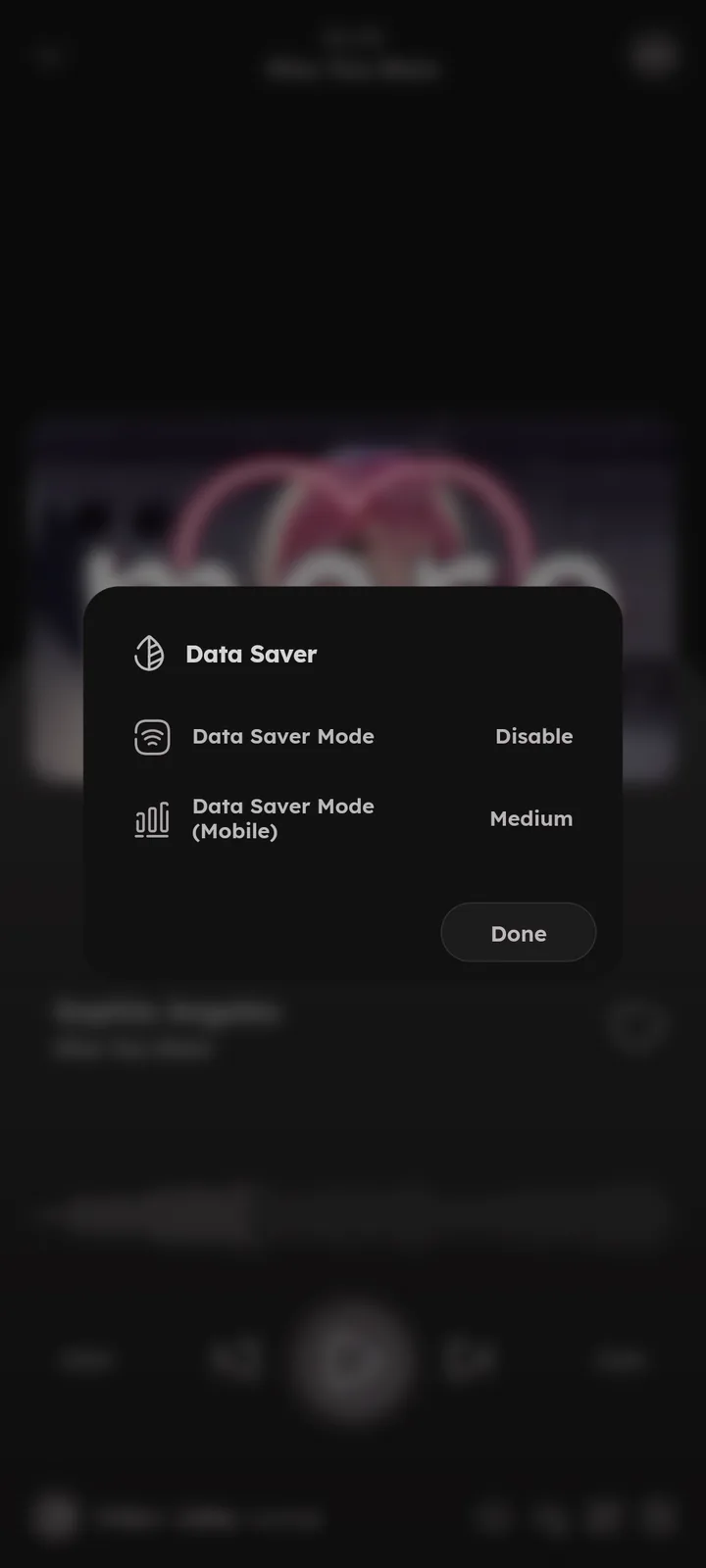
It is available in the player, not in settings: press the video quality button, Data Saver sits at the top of the list and shows the current level.


Subtitles
🆕 v7.0.0
Captions of any video can be shown while watching, including the auto generated ones. See the 🎉 Subtitles feature ↗.
Video View
Watching videos supports gestures:
- Swipe up or pinch in to enter fullscreen
- Swipe down on the right side to enter fullscreen portrait
- Swipe up the minimized player on the video part to enter fullscreen
- Double tap the left or right side to seek, keep tapping to seek further
- In fullscreen, swipe vertically on the right side for volume, and on the left side for brightness (on Android, going past 100% raises the screen brightness too)
- Swipe horizontally to seek
- Seeking very close to the starting edge snaps to the very start
- While seeking, swipe upwards to cancel
- Long press for 1.5x speed
⚙️ Configure Long Press Speed ↗
The lock button in fullscreen blocks all gestures and controls until you unlock it.
Horizontal seeking on the video can be limited to fullscreen, the expanded miniplayer, always or never. ⚙️ Configure Drag to seek (Video) ↗
In fullscreen, you can enable glow to show an ambient effect behind the video (might affect performance & battery).
On Android, entering fullscreen or pressing the rotate button follows the device sensor, so the video matches how you are actually holding the device.
Miniplayer
A YouTube style miniplayer with comments, related videos and video description. It dims automatically after a few seconds to help focus & reduce eye strain. Both the delay and the dim intensity can be changed. ⚙️ Configure Miniplayer ↗
More related videos load as you scroll to the end, or with the “Show more” button when comments are at the bottom. 🆕 v7.4.0 ⚙️ Configure Top Comments ↗
Links in the description that point to another video at a timestamp play it next, starting from that timestamp. Tapping a hashtag opens a page with its videos, shorts and playlists. 🆕 v7.4.0
Chapters
🆕 v7.4.0
Videos with chapters show a chapters row above the description, open it by tapping the title area. Each chapter shows its length, the current one shows its progress, and played ones are dimmed. Tap a chapter to seek to it, or press “Show All” to list all of them in a sheet.
Long press a chapter to copy a link to its timestamp, or to download only that chapter. 🎉 Chapter Downloads ↗


Downloads
Download any video or audio, with full control over the result: ⚙️ Configure Downloads ↗
- Metadata tags are written to the file, with optional auto title/artist/album extraction from the video title. You can edit every tag before downloading.
- Output filename builder, similar to yt-dlp format, see all formats below.
- Both work for single downloads and batch playlist downloads, where playlist formats number the files for you.
- Default download folder, changeable per download.
- Download notifications
💻 Windows+Linux only. - Downloads that fail because there is no connection resume on their own once it is back, thumbnails retry the same way.
🆕 v7.0.0 - Parallel downloads, up to 10 videos at a time (4 by default). Set it with the flash icon in the
📄 Downloads page ↗.🆕 v7.1.0 - Big files download over multiple connections at once (3 by default and up to 8), set from the same flash icon as “Threads per download”. Servers that don’t support it fall back to a single connection.
🆕 v7.4.0 - Remove sponsor segments from the downloaded file, see below.
🆕 v7.4.0 - Split by Chapters, save each chapter of the video as its own file, see below.
🆕 v7.4.0 - Video chapters are kept in the downloaded file.
🆕 v8.2.0 - Playlist downloads can be added to a library playlist, see below.
🆕 v7.4.0 - Set file last modified as video upload date, files get the video’s date instead of the download time.
🎉 File Dates ↗
The extra file options (Split by Chapters, Remove Sponsor Segments, Keep cached versions and more) are in the Edit Tags sheet, press the pencil icon beside the video title in the download sheet.
For playlists, press the gear button in the playlist download page.
Removing Sponsor Segments
🆕 v7.4.0
Cut out sponsors, intros and other SponsorBlock segments from the downloaded file. The cut is lossless, and the cover art and tags are written again after it.
- Turn it on with “Remove Sponsor Segments from Downloads” in the SponsorBlock settings, then pick which categories get removed. Sponsor, Self Promotion and Interaction Reminder are picked by default.
⚙️ Configure SponsorBlock ↗ - The same tile shows in the Edit Tags sheet, press its pencil icon to pick different categories for that download only.
- Segments shorter than the minimum segment duration are kept.
Chapter Downloads
🆕 v7.4.0
Turn on “Split by Chapters” and a video with chapters gets saved as a folder, with one file per chapter:
Video Title/
  01. Intro.m4a
  02. First Song.m4a
  03. Second Song.m4a
Each part is tagged with the chapter title as the title, the video title as the album, and the chapter number as the track number. Videos without chapters download as a single file like usual.
To download only one chapter, long press it in the miniplayer chapters and choose Download. The file is trimmed to that chapter and named after it.
Into a Library Playlist
🆕 v7.4.0
In a playlist download page, open the settings with the gear button and turn on “Add to Playlist”.
Downloaded tracks get added to a library playlist named after the folder (or the YouTube playlist), kept in the same order as the source playlist, even if they finish downloading in a different order. The playlist is created if it doesn’t exist. Requires “Add audio to local library”. 🎉 Playlists feature ↗


Filename & Tags Formats
Use these inside %(...)s to build the output filename, or the tags:
| Format | Meaning |
|---|---|
video_id, id |
video identifier |
video_url, url |
video full url |
video_title, fulltitle |
video full title |
title |
extracted music title from video title (Navjaxx - Fading Light (Slowed)) |
artist |
extracted music artist from video title (Navjaxx - Fading Light (Slowed)), or else channel |
genre |
music genre, automatically set to Nightcore when the video title contains “nightcore” |
ext |
format container extension (mp4, m4a, webm), added automatically if not specified |
channel_fulltitle |
channel full name |
channel, uploader |
channel name (excluding " - Topic") |
channel_id, uploader_id |
channel id |
channel_url, uploader_url |
channel url |
timestamp |
UNIX timestamp of the video, milliseconds since epoch |
upload_date |
upload date of the video, converted to local time (yyyyMMdd) |
view_count |
view count of the video |
like_count |
like count of the video |
description |
video description, links are wrapped in a markdown style |
duration |
video duration in seconds (204) |
duration_string |
video duration formatted (3:24) |
playlist_title |
title of the playlist containing the video |
playlist_id |
id of the playlist containing the video |
playlist |
playlist_title if available, or else playlist_id |
playlist_count |
total videos count in the playlist |
playlist_index |
index of the video in the playlist, starts at 0 |
playlist_autonumber |
position of the video in the playlist, starts at 1 |
none |
empty field, useful for tags to override any other settings |
Examples:
# [04] music title [(channel name)]
[%(playlist_autonumber)s] %(title)s [(%(channel)s)]

# saving to separate folders
# music playlist/02. music title.m4a
%(playlist)s/%(playlist_autonumber)s. %(title)s.%(ext)s
Caching & Offline Playback
Streamed videos and audios are cached, so they play offline later without downloading. A cache priority system decides what to keep when cleaning up, so your important stuff stays.
- Every cached video has a priority: VIP, High, Normal, Low or Disable. Cleaning starts from the bottom, and VIP items are never deleted automatically.
- Private and deleted YouTube videos are automatically set to VIP, so you never lose them.
- Info of private and deleted videos can still be shown, thanks to Filmot.
You can also cache ahead of time, without saving any files to your downloads folder.
Use “Cache” from the menu of a video, a YouTube playlist, or a Namida YouTube playlist, pick audio only or a video quality, and the videos are ready for offline playback. Tasks show up in the 📄 Downloads page ↗ like downloads. 🆕 v7.4.0
Items cached this way get the normal priority, set them to VIP if you want to make sure they are never cleaned up.
Namida & Account
Your YouTube data lives in two separate places:
- Namida, kept on your device and works without signing in: watch history, most played, favourites, playlists and subscribed channels (with groups).
- Account, your signed-in account’s live data: home feed, notifications, subscriptions, playlists and watch history.
The app labels them Local and YouTube, in the YouTube tab sections and in the “Add to Playlist” sheet. 📄 YouTube Sections ↗
Playlists
There are 3 kinds of playlists in Namida:
- Local playlists, your normal library playlists, see
🎉 Playlists & History feature ↗. - Namida YouTube playlists, playlists of YouTube videos, stored inside Namida.
- Account YouTube playlists, your account playlists, useful to access them instantly. You can also save them as Namida YouTube playlists, so videos don’t get randomly removed (as YouTube usually does).
How actions map to them:
- While browsing a public/unlisted YouTube playlist, open the menu and use “Save to library”, this adds it to your account playlists (3).
- While browsing a YouTube playlist or your account playlists, open the menu and use “Import playlist”, this adds it as a Namida YouTube playlist (2).
- A local track’s “Add to Playlist” adds to local playlists (1).
- A YouTube video’s “Add to Playlist” adds to Namida YouTube playlists (2) if the Local tab is selected, or to your account playlists (3) if the YouTube tab is selected.
- A local track that has a YouTube link can be added to YouTube playlists too, open its dialog and press the menu button beside “Open in Youtube view”, this gives the YouTube video menu for it.
🆕 v7.4.0
Editing one of your own account playlists from its menu also lets you choose “Add new videos to the top”, press the settings icon beside the privacy chips. 🆕 v7.4.0
Saving, editing and deleting your account playlists needs a membership, while browsing them, creating new ones and adding videos is free. 📄 Membership ↗


SponsorBlock
Skips sponsor segments in videos using community data from SponsorBlock. Segments and heatmap are also shown on the seekbar. You can choose which categories to skip and how. ⚙️ Configure SponsorBlock ↗
The same segments can be cut out of your downloads. 🆕 v7.4.0 🎉 Removing Sponsor Segments ↗
Return YouTube Dislike
Shows the dislike count on videos using Return YouTube Dislike. ⚙️ Configure RYD ↗
Accounts
Sign in to your account to get personalized related videos and mixes, and to interact with videos. It can also improve download speed and fix some playback issues. Brand accounts under the same Google account can each be signed in separately. ⚙️ Configure Accounts ↗
Likes, your playlists, subscriptions and notifications are free once signed in, some other account features need a membership. 📄 Membership ↗


Comments
Full comments support with replies. You can prefer top comments or newest comments first. ⚙️ Configure Comments ↗
Reading comments is free, writing and liking them needs a membership. 📄 Membership ↗
Channel custom emojis, voice replies (shown as their transcript) and the “comments paused” notice are all shown. Closing the comment sheet with unsent text asks before discarding it. 🆕 v7.4.0
Takeout Import
You can import your watch history from YouTube takeout files (both json and html formats work). It gets merged into Namida history like any local listen.
The same takeout can also bring your favourites (liked videos) and playlists (as Namida YouTube playlists), you choose what gets imported. 🆕 v8.2.0
Your playlists and subscribed channels can be imported from takeout too, right in the 📄 YouTube Channels Page ↗ & 📄 YouTube Playlists Page ↗. ⚙️ Configure History Import ↗
Signing in gives live access to your subscriptions and playlists, which can be better than importing them manually.
Related Settings
- ⚙️ YouTube Settings
- ⚙️ SponsorBlock
- ⚙️ Return YouTube Dislike
- ⚙️ Backup & Restore, for history import
- 🎉 Subtitles feature
- Features
- Library & IndexingFile Dates
- PlaybackGestures
- Subtitles
- Playlists & HistoryPlaylists
- Listening PartyThe Queue
- YouTube PagesSections, Playlists, Downloads
- YoutubeSponsorBlock, Downloads
- AdvancedCache Limits
- WelcomeQuickstart
- What's New🏷️ v8.2.0, 🏷️ v7.4.0, 🏷️ v7.1.0, 🏷️ v7.0.0
- Tips & TricksDownloading, YouTube
- FAQWhat do Local and YouTube mean in the YouTube tab?
- MembershipWhat It Unlocks, Free for Everyone
- Library & IndexingFile Dates
- Subtitles
- Playlists & HistoryPlaylists
- YouTube PagesSections, Playlists, Channels, Downloads
- PlaybackLong-Press Action: Speed
- YoutubeManage Your Accounts, SponsorBlock, Return Youtube Dislike, Miniplayer, Comments, Downloads
- Backup & RestoreImport data
- AdvancedCache Limits
- MembershipWhat It Unlocks
Author: @MSOB7YY
Writer: @claude
