
Playback
Everything about how Namida plays your music and videos.
Long press the audio button in the player, then press Playback, to open this section.
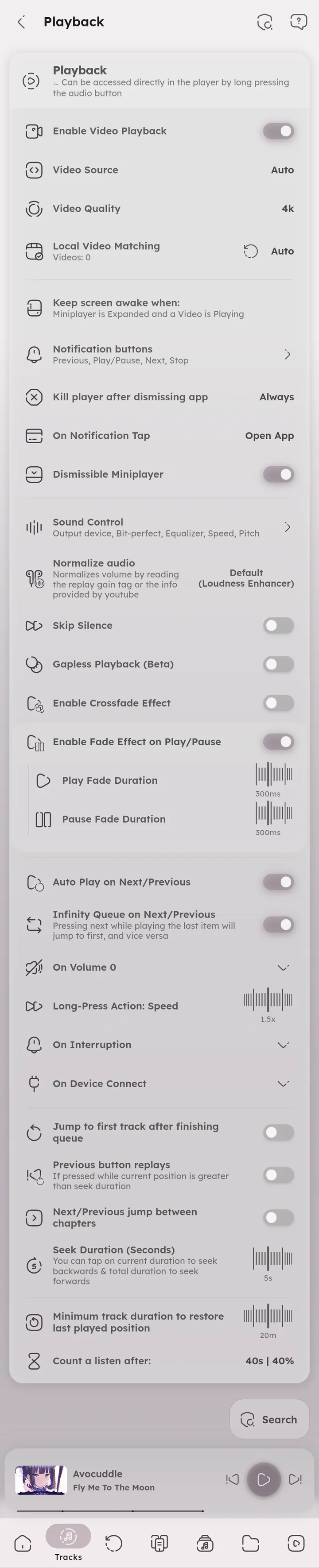
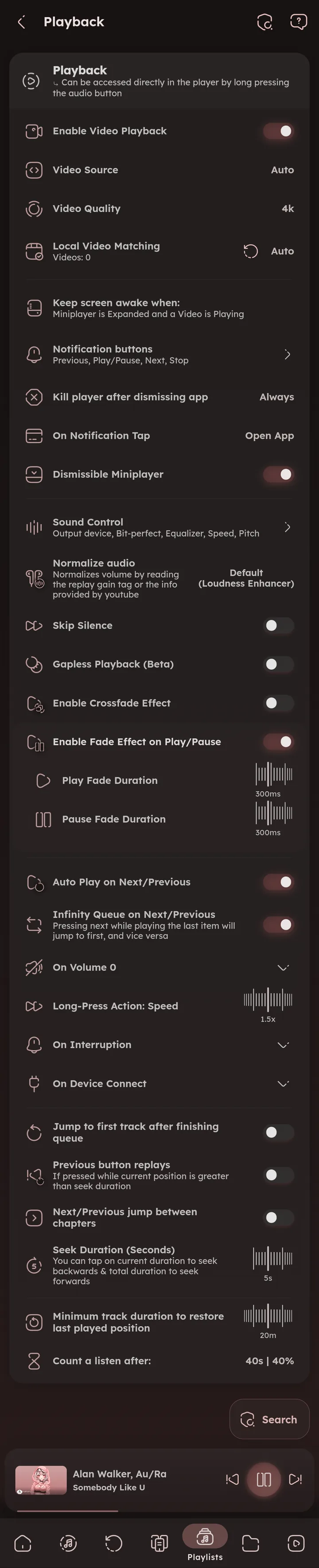


Enable Video Playback
Play videos related to the music. Videos can be found locally or fetched from YouTube.
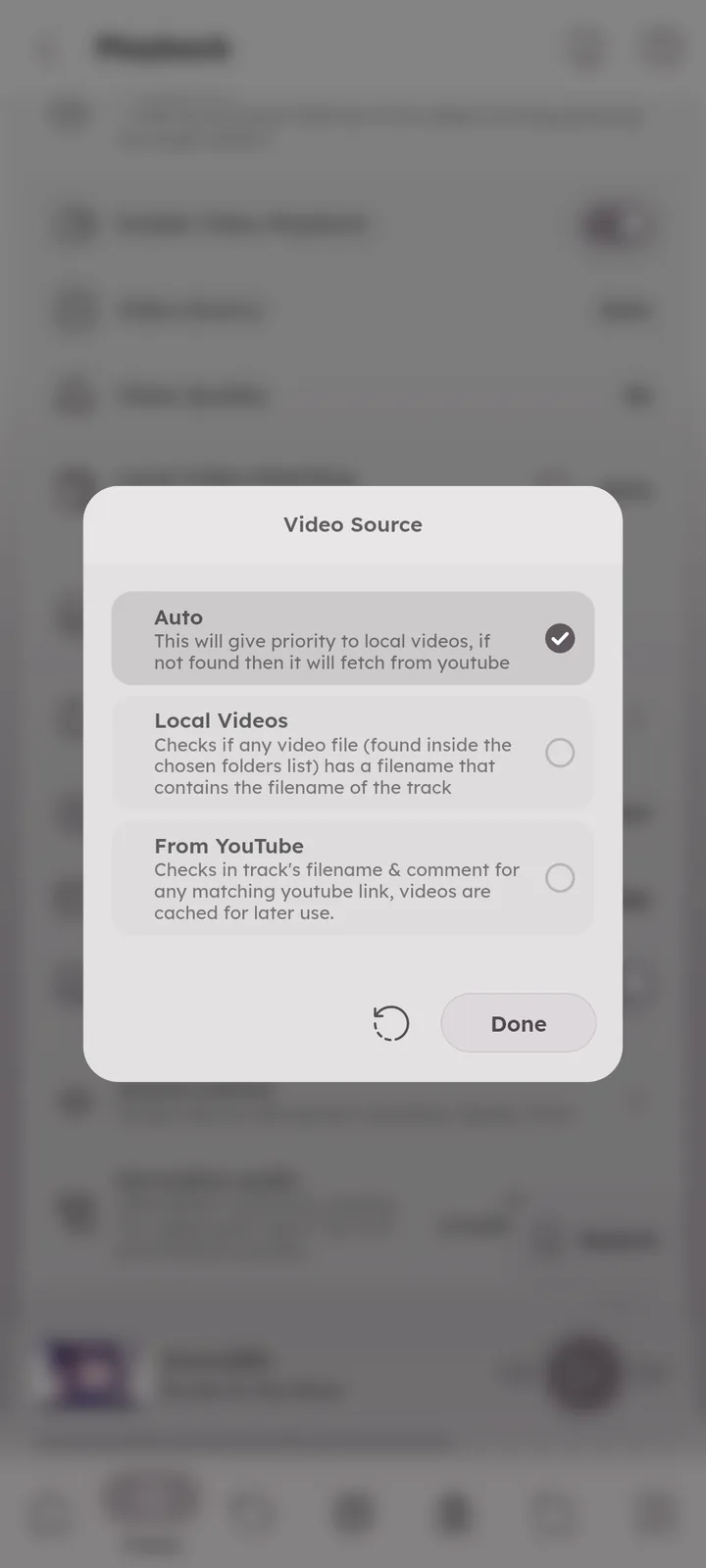
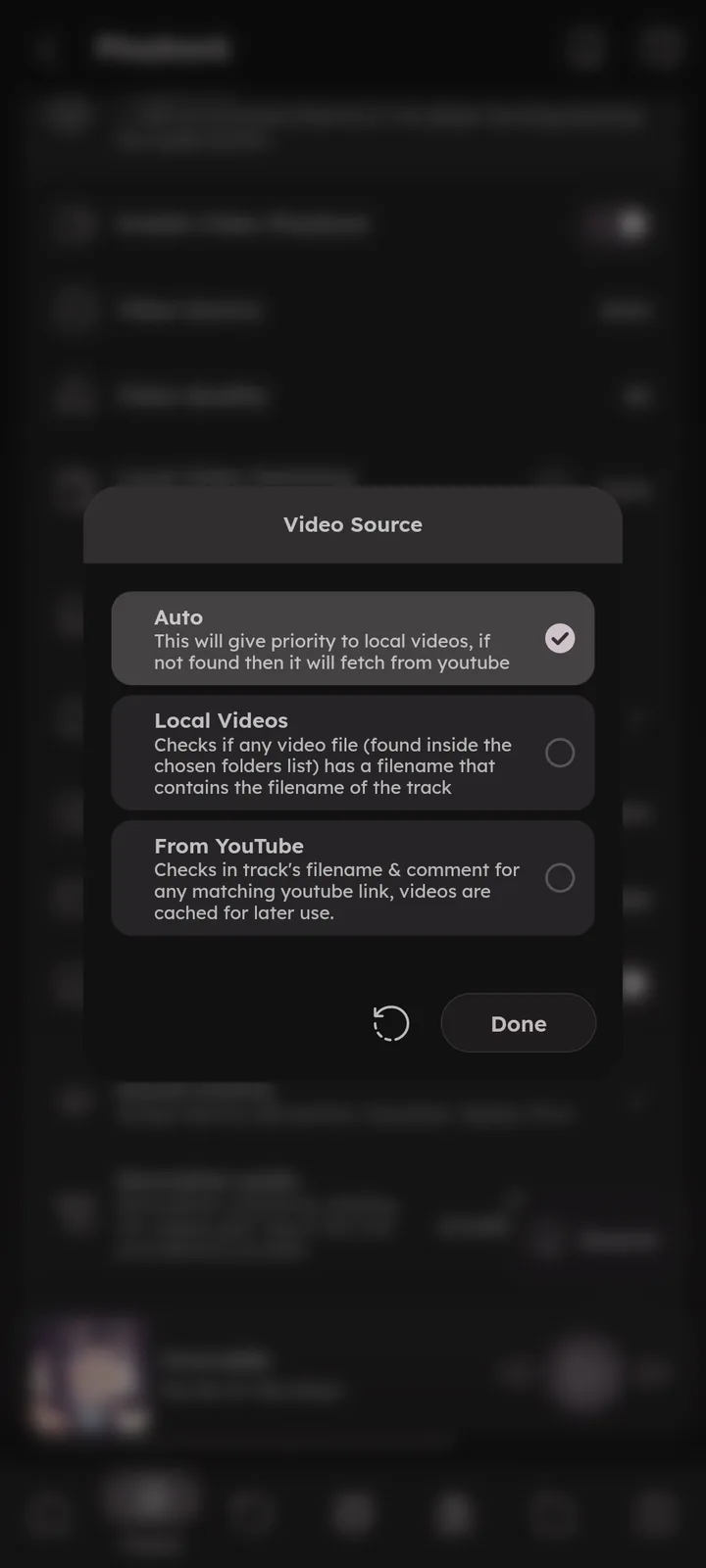
Video Source
- Auto: uses local videos first, if none is found it fetches from YouTube.
- Local Videos: checks if any video file inside your folders has a filename that matches the track.
- From Youtube: checks the track filename & comment tag for a matching YouTube link, videos are cached for later use.


Video Quality
Your preferred qualities, in order. Keep a few alternatives (if none of them is available the lowest quality is used).


Local Video Matching
How local videos are matched with tracks (by title or filename), with an option to match inside the same directory only.


Keep Screen Awake When
Never, when the miniplayer is expanded, or when the miniplayer is expanded and a video is playing.
Notification Buttons
🆕 v8.2.0 💻 Android only
Pick and reorder the media notification buttons: favourite, stop, shuffle, repeat, seek, chapters, sleep timer, stop after this track, add to playlist and bookmark. For add to playlist, you pick the playlist it adds to.
On Android 11 and below, the thumbnail might move out of place with 5 buttons.
Display Artwork on Lockscreen
💻 Android <= 12 only
Shows the current track’s artwork on the lockscreen.
Kill Player After Dismissing App
Stops playback completely when you swipe the app away. Three modes: Always, If not playing, or Never.
On Windows & Linux this decides what closing the window does (quit the app or minimize to the tray). 🎉 System Tray ↗
On Notification Tap
💻 Android only
Choose what opens: the app, the miniplayer or the queue.
Dismissible Miniplayer
Swipe the miniplayer away to stop playback and clear the queue.
Sound Control
🆕 v7.8.0
Opens the Sound Control page: output device, bit-perfect, the equalizer, speed, pitch and more. 🎉 Sound Control ↗


Normalize Audio
Keeps the volume consistent between tracks (using the replay gain tag, or the loudness info YouTube provides for videos). You pick how it is applied:
- Off.
- Platform default, the best option for your device.
- Loudness Enhancer, uses the system effect.
- Volume, changes the player volume instead (more stable).
Skip Silence
💻 Android+Linux only
Skips silent parts of the audio (not for YouTube).
Gapless Playback
Removes the small delay between tracks by loading the next one early. Useful for some albums, or for those who can’t wait 0.067 seconds between tracks. Beta feature.
Crossfade
Fades between tracks. You can set the crossfade duration and how many seconds before the end it should trigger.
Part of the membership, or unlock it with an egg. 📄 Membership ↗ 📄 Eggs ↗
Style: Smart starts automatic crossfades where the track fades out, Beat matching also lines up the beats. 🆕 v8.2.0 🎉 Smart & Beat Matching ↗
Turned off while Bit-perfect, USB direct access or Exclusive mode is on. 🆕 v7.8.0


Fade Effect on Play/Pause
Fades audio in and out instead of an instant play or pause, with separate durations for each. Turned off while Bit-perfect is on.
Auto Play on Next/Previous
Start playing directly when skipping to the next or previous track.
Infinity Queue on Next/Previous
Pressing next on the last item jumps to the first one, and vice versa.
On Volume 0
Pause playback or do nothing when volume reaches zero, with an option to resume if it was paused for less than a set number of minutes.
Long-Press Action: Speed
The playback speed used while long pressing the next button or the video (1.5x by default).
On Interruption
💻 Android only
Control what happens on calls and notifications: pause, duck (lower the volume) or do nothing, and whether to resume after the interruption ends.
On Device Connect
💻 Android only
Resume playback when a wired or wireless device is connected, if playback was paused by disconnecting it.
Jump to First Track After Finishing Queue
When the queue ends, go back to the first track instead of staying on the last one.
Previous Button Replays
If the track has played longer than the seek duration, pressing previous restarts it instead of going to the previous track.
Next/Previous Jump Between Chapters
🆕 v8.2.0
In a track or video with chapters, next and previous jump between its chapters instead of changing the track. 🎉 Chapters ↗
Seek Duration
How many seconds the seek buttons jump.
Tap the current position to seek backwards, and the total duration to seek forwards. Hold either one to keep seeking in that direction.
Minimum Track Duration to Restore Last Position
Tracks longer than this resume from where you left off, useful for podcasts and long mixes.
Count a Listen After
How much of a track must play (in seconds or percentage) before it counts as a listen in history.
- PlaybackQueue System, Repeat Modes, Audio Effects, Smart & Beat Matching, Sound Control, Replay Gain, Pausing Scenarios, Video Integration, Gestures, Chapters
- Playlists & HistoryHistory
- YouTubeVideo View
- System IntegrationMedia Controls, System Tray
- ShortcutsPlayback
- SettingsSections
- What's New🏷️ v8.2.0, 🏷️ v7.8.0
- Medium GuidesLink a YouTube video to a track, Link a local video to a track, Split a CUE album into tracks
- Tips & TricksPlayer, Desktop
Author: @MSOB7YY
Writer: @claude
